

For HR's / Corporates
The UptoSkills HR Dashboard: The Complete Guide
A full tour of the employer dashboard: what every sidebar section does, the six tabs inside a job, what the home screen counters mean, and the two things that keep a new account locked.
Updated 19 Aug 2026
Short answer: The HR dashboard is where you post roles, review who applied, run interviews and assessments, release offers, and manage the coins that pay for it. Everything is reached from a sidebar of five groups, and every job you post opens into its own set of six tabs.
💼 This guide walks the whole dashboard top to bottom. Each section links to a deeper guide where one exists.
The home screen
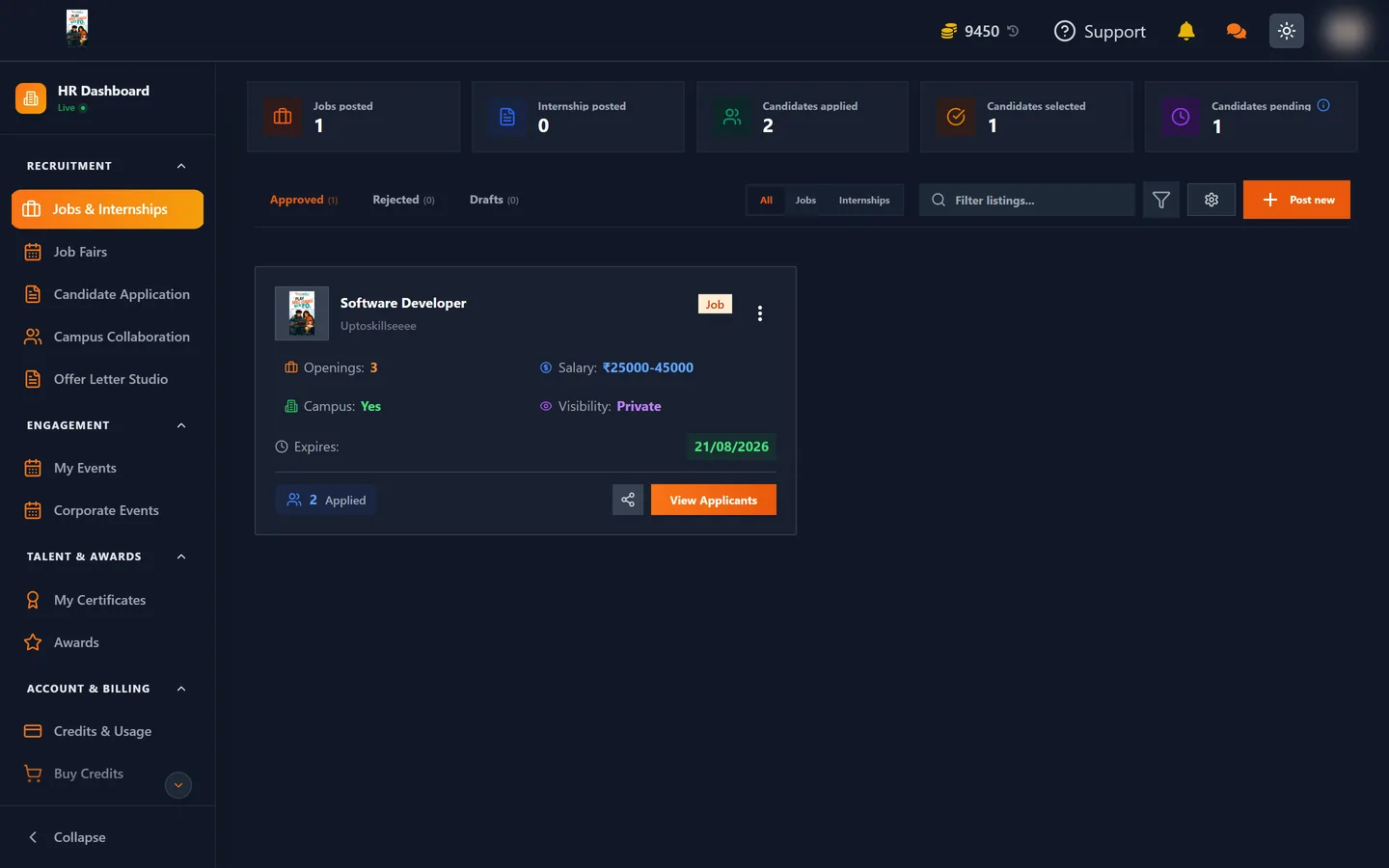
Landing on Jobs & Internships gives you five counters across the top, which are the fastest health check on your hiring:
| Counter | What it counts |
|---|---|
| Jobs posted | Live job listings |
| Internship posted | Live internship listings, counted separately |
| Candidates applied | Total applications across all your roles |
| Candidates selected | How many you have marked Selected |
| Candidates pending | Applications still awaiting a decision from you |
Below that, listings are split across three tabs — Approved, Rejected and Drafts — with an All / Jobs / Internships switch, a search box and a filter control. Drafts is where an unfinished posting form ends up, and it is worth checking if a role you thought you posted is nowhere to be seen.
Each job card shows openings, salary range, whether campus hiring is switched on, visibility (Public or Private), the expiry date, and an applied count with a View Applicants button.
The sidebar, group by group
Recruitment
| Item | What it is for |
|---|---|
| Jobs & Internships | Your home screen and every role you have posted |
| Job Fairs | Multi-company hiring drives, each with its own jobs, applicants and analytics |
| Candidate Application | Applications across all roles in one list rather than job by job |
| Campus Collaboration | Recruit through partner colleges instead of the open pool |
| Offer Letter Studio | Build and save reusable offer letter templates |
Engagement
My Events is for events you host — create, edit, preview and see who registered. Corporate Events is for events and webinars on the platform that you can join.
Talent & Awards
My Certificates holds certificates and experience letters issued to your candidates. Awards shows recognition your company has earned.
Account & Billing
Credits & Usage is your coin balance and a line-by-line record of what every coin went on. Buy Credits tops you up. Billing holds payment history and invoices.
Preferences
Settings for account and notification preferences, and Support to reach the team.
Inside a single job
Opening a role gives you six tabs. Most day-to-day work happens here rather than on the home screen.
| Tab | What you do there |
|---|---|
| Analytics | How the post is performing — views, applications, drop-off |
| Applications | Everyone who applied, with filters, search and export |
| AI Assessment | Invite candidates to an automated skills test |
| AI Interview | Invite candidates to an automated interview |
| Interview | Schedule and run human interview rounds |
| Offer Release | Generate and send the offer |
Which of these are active depends on the hiring flow you chose at step 5 of the posting form. A job built with a simple flow will not show stages it does not use.
Two things that keep a new account locked
If most of the dashboard appears greyed out or refuses to do anything, it is almost always one of these two:
- Your account is not verified. Employer accounts are checked by hand before they can recruit. See Getting Your HR Account Verified.
- You are out of coins. Paid actions check your balance first and tell you the shortfall. See What Everything Costs.
The top bar
Your coin balance sits in the top bar at all times, with a history icon beside it that jumps straight to Credits & Usage. Next to that are Support, notifications, messages, and a light/dark toggle.
Where to go next
- Getting Your HR Account Verified — the first thing every new account must do
- How to Post a Job or Internship — all six steps of the posting form
- What Everything Costs — the full coin price list
- Unlocking Candidate Applications — what you see before and after you pay