

For HR's / Corporates
Unlocking Candidate Applications: What You See Before and After
Which candidate fields are free to view, which need a 5-coin unlock, why search only matches unlocked candidates, and the two row flags that stop you wasting coins.
Updated 19 Aug 2026
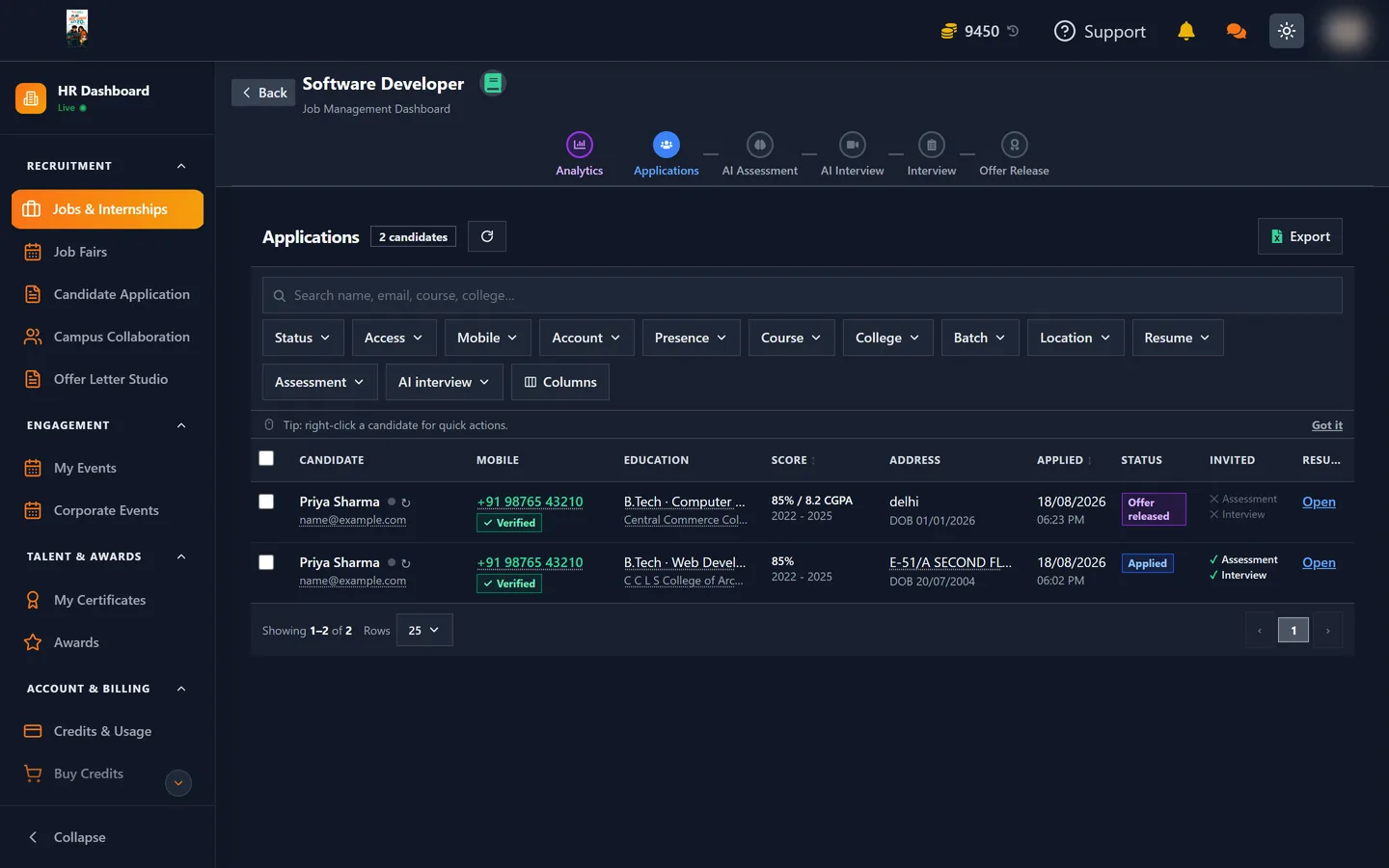
Short answer: Applications arrive partly hidden. Academic background and city are free to see, so you can shortlist for nothing. Name, email, phone and resume cost 5 coins per candidate to reveal, and once unlocked on a job they stay unlocked forever.
🔒 The split is deliberate: you should be able to judge whether someone is worth pursuing before you pay to contact them.
Free on every application
Enough to shortlist on, with no coins spent:
- Course and specialisation — e.g. B.Tech · Computer Science
- College or institution
- Percentage and CGPA
- Batch years
- City and state — coarse location only
- When they applied, to the minute
- Their current stage in your hiring flow
- Whether their mobile is verified — the flag, not the number
- Whether you have invited them to an AI assessment or AI interview
Hidden until you unlock
- Name
- Email address
- Mobile number
- Date of birth
- Full postal address and country
- Resume
- Profile photo and public profile link
- Answers to your custom application questions
These are not blanked-out placeholders sitting in the page. They are genuinely never sent to your browser until the candidate is unlocked.
Search only matches unlocked candidates
The search box says "Search name, email, course, college…", and it does search all four — but name, email and phone only match candidates you have already unlocked.
This is deliberate. If search matched locked candidates, you could recover a hidden name by guessing at it one letter at a time. Course, college and every filter below work across everyone, locked or not.
Filtering without spending anything
The Applications tab carries a full row of filters, all of which work on locked candidates:
| Filter | Use it to |
|---|---|
| Status | Narrow to Applied, Offer released and so on |
| Access | Show only locked, or only unlocked, candidates |
| Mobile | Filter to verified numbers only |
| Account | Exclude candidates who have deleted their account |
| Course / College / Batch | Academic filtering |
| Location | By city or state |
| Resume | Only candidates who attached one |
| Assessment / AI interview | By invitation or completion state |
| Columns | Show or hide table columns |
Filter hard before you unlock anything. Every filter above is free, and narrowing 200 applicants to 20 before you pay is the difference between 100 coins and 1,000.
How to unlock
- Open the job and go to Applications.
- Tick the candidates you want — the checkbox column supports selecting several at once.
- Confirm. The cost is shown before anything is charged.
Rows update in place, with no reload needed. There is also a right-click menu on any row for quick actions.
The rules that protect you
| Rule | What it means for you |
|---|---|
| Permanent per job | Once unlocked, that candidate stays unlocked on that job forever |
| No double charging | Re-selecting an already-unlocked candidate costs nothing |
| Per job, not per person | The same candidate applying to two roles is unlocked separately on each |
| Applicants only | You can only unlock someone who actually applied to that job |
| All or nothing | If the charge fails, the unlock is undone — you are never given access you were not billed for |
Two flags that save you coins
Both appear on the row before you unlock, precisely so you can avoid wasting money:
- Mobile not verified — the candidate never confirmed their number, so a phone call may not reach them. Email is the safer route for these.
- Account deleted — the candidate has since deleted their UptoSkills account. Do not spend coins here; there is nobody left to contact.
The counters and export
The header shows the total candidate count for the job, and the Access filter tells you how that splits between locked and unlocked — the quickest way to see how much of your shortlist you still have to pay to reach.
Export produces a spreadsheet of the table. It contains what you can see: unlocked candidates export with their details, locked ones export with academic data only.
Where to go next
- What Everything Costs — the full price list
- Inside a Job: The Six Tabs — what happens after shortlisting