

For HR's / Corporates
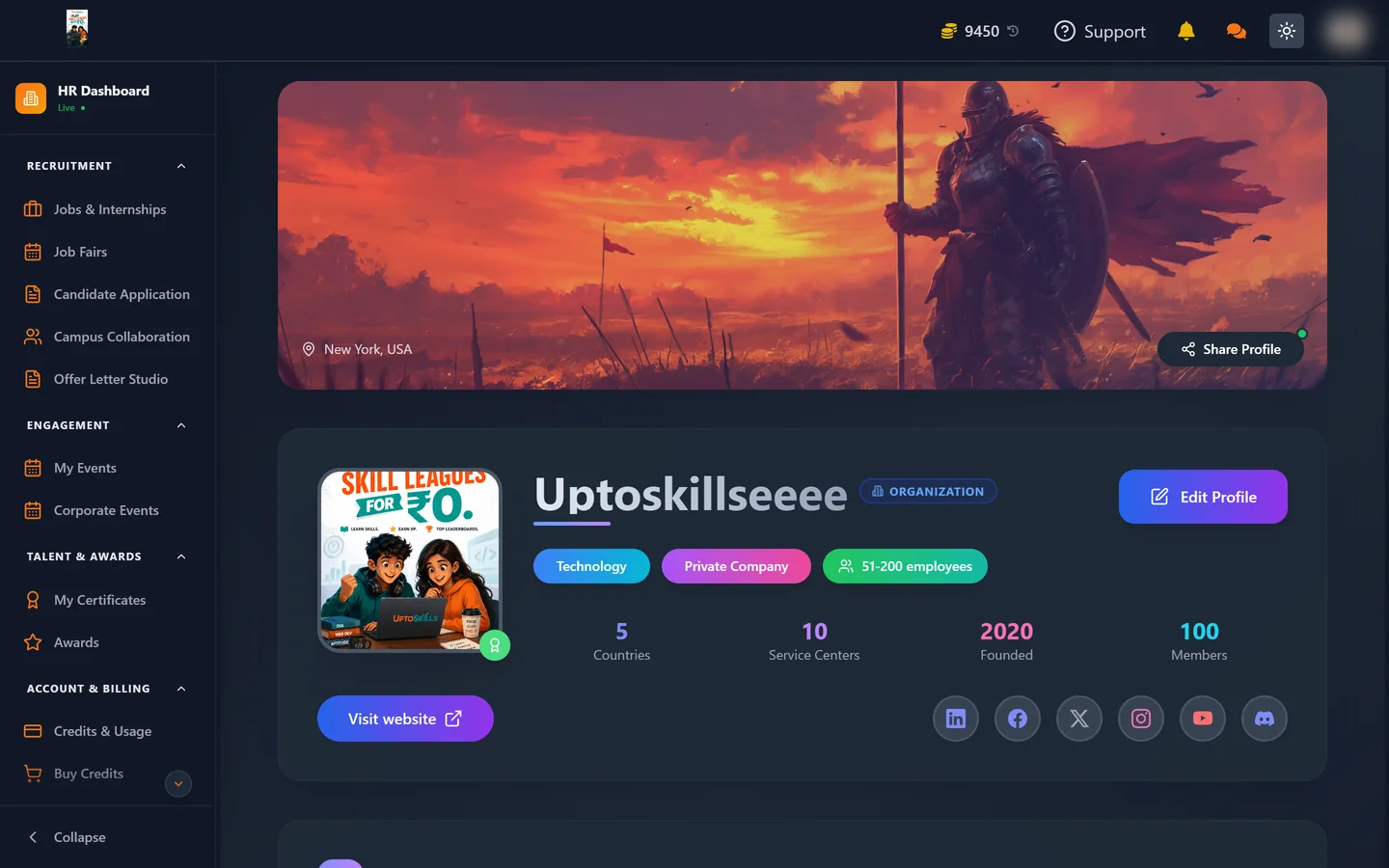
Getting Your HR Account Verified on UptoSkills
Exactly what to submit to get an employer account verified — company name, logo and ID proof, both under 2 MB — plus how to withdraw a pending request, what to do after a rejection, and how to fix upload errors.
Updated 19 Aug 2026
Short answer: Submit your company name, your company logo and one piece of ID that ties you to the company. Both files must be under 2 MB. A human reviews it, and until it clears, most of the dashboard stays locked.
🛡️ This is a one-time check per account. There is nothing to renew and nothing to pay.
Why the check exists
Candidate contact details, resumes and application answers sit behind this gate. Verifying that an account belongs to a real company and a real person is what stops that data reaching someone who should not have it. Every employer on the platform has been through the same step.
What you need
Three things are required. GST is optional and can be left blank.
| Field | Accepted formats | Notes |
|---|---|---|
| Company name | Text | Your registered name, not a trading nickname — it appears on job posts and offer letters |
| Company logo | JPG, JPEG, PNG, GIF, WEBP | Images only — a PDF will be rejected |
| ID proof / visiting card | JPG, JPEG, PNG, GIF, WEBP, PDF | Must show your name and the company |
| GST number | Text | Optional — leave it empty if you do not have one |
Both files must be under 2 MB. The limit is strict and checked before upload, so an oversized file is refused immediately rather than failing halfway. If your logo is a large PNG, resizing it to around 500 px wide or exporting as WebP will bring it well under the limit with no visible loss.
Submitting
- Open the verification panel. It appears on its own while your account is unverified.
- Type your company name.
- Upload your logo — click the box or drag the file onto it.
- Upload your ID proof or visiting card the same way.
- Press Submit Application.
The button stays disabled until all three are filled in. If pressing it does nothing, one of the three is still missing.
The four states
| State | What it means | What you can do |
|---|---|---|
| Not submitted | Nothing sent yet | Fill in the form and submit |
| Submitted | Waiting on review; fields are locked | Withdraw the request if you spot a mistake |
| Rejected | Turned down, with a written reason | Read the reason, then resubmit |
| Accepted | Done — the panel stops appearing | Nothing; full dashboard is open |
Withdrawing a pending request
While your submission is under review the form fields lock, so you cannot accidentally change what is being looked at. If you realise you uploaded the wrong file, use Withdraw Request. That clears the submission entirely and lets you start again. You can withdraw at any point before the review is finalised.
If you are rejected
A rejection is not final — you can resubmit straight away. The panel shows Verification Rejected along with a note from the reviewer explaining what was wrong.
Read that note before doing anything else. Resubmitting the same files will produce the same result. The usual causes are:
- An ID that does not show the company name anywhere
- A photograph too blurry or too dark to read
- A company name typed differently from the one on the ID
- A logo file that is actually a screenshot of a website header rather than the logo
Upload errors and what they mean
| Message | Cause | Fix |
|---|---|---|
| File size exceeds the 2MB limit | File rejected before uploading | Resize or re-export the file smaller |
| Invalid file type for Company Logo | A PDF or other non-image was chosen | Use JPG, PNG, GIF or WEBP |
| Invalid file type for ID Proof | Format outside the accepted list | Use an image or a PDF |
| Network connection interrupted or upload timed out | The request left your browser but did not finish | Check your connection, confirm both files are under 2 MB, resubmit |
After approval
The verification panel stops appearing and the dashboard opens up — posting roles, viewing applications, unlocking candidates and releasing offers. Your company name and logo carry through to your public job listings, so it is worth getting them right at this stage.