

For HR's / Corporates
How to Post a Job or Internship: All Six Steps
The six steps of the UptoSkills posting form — description, requirements, salary, communication, hiring flow and payment — with drafts, templates, preview, what editing costs, and why a post might not appear.
Updated 19 Aug 2026
Short answer: Posting a role is a six-step form — Description, Requirements, Salary, Communication, Hiring Flow, Payment. You can move back and forth freely and save a draft at any point. Nothing is charged until you confirm on the final step, and on default pricing posting a job is free.
📝 Jobs and internships use the same six steps. The only difference is which listing counter they land in.
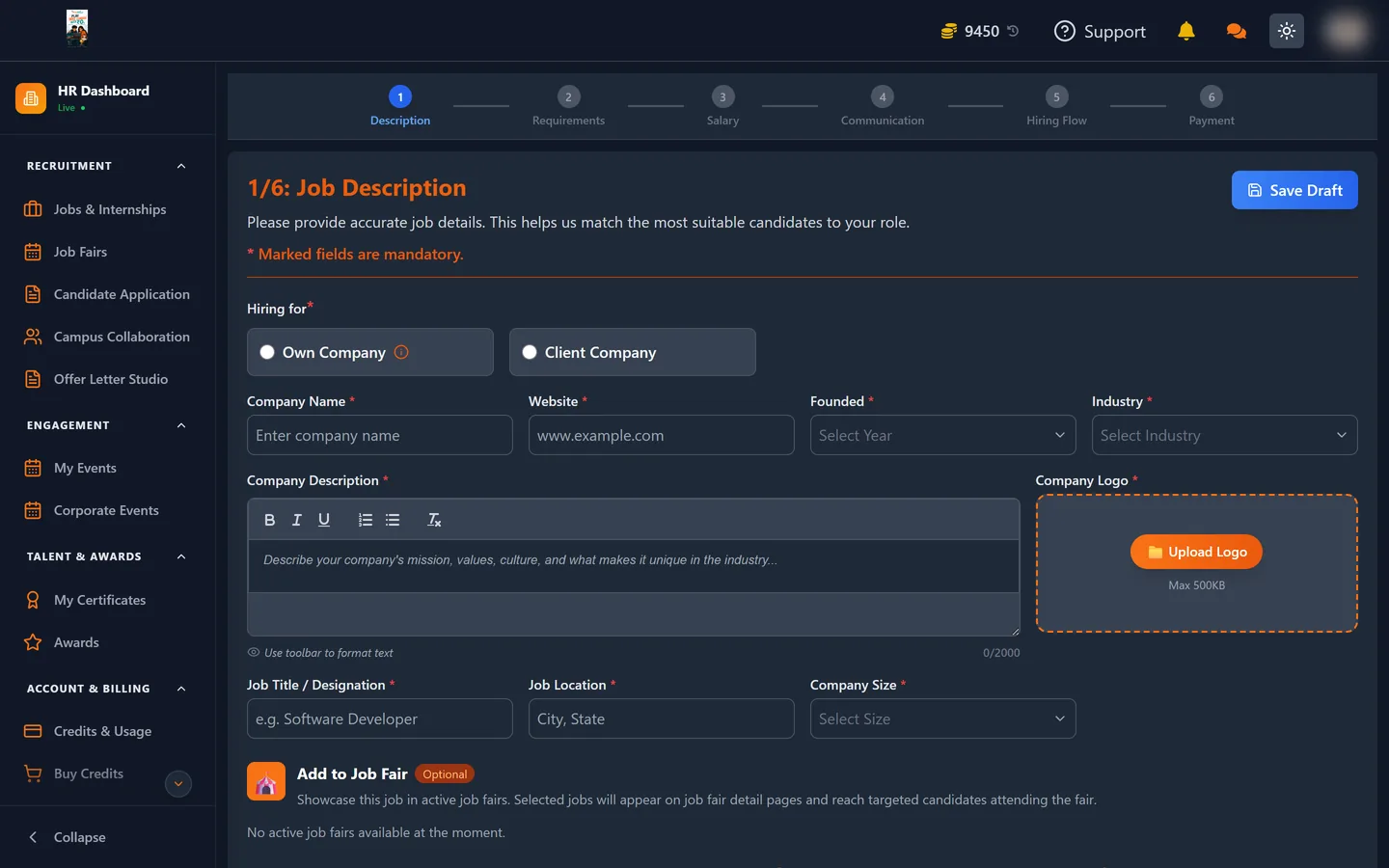
The six steps at a glance
| # | Step | What it covers |
|---|---|---|
| 1 | Description | Job title, role summary, responsibilities |
| 2 | Requirements | Skills, qualifications, experience, eligibility |
| 3 | Salary | Pay or stipend range, and benefits |
| 4 | Communication | How and when candidates hear from you |
| 5 | Hiring Flow | The stages a candidate passes through |
| 6 | Payment | Review the order and confirm |
Save a draft instead of finishing
Every step before the last offers Save Draft. A draft keeps everything you have typed and costs nothing — no coins move until you confirm at step 6. Use it whenever you need a salary band signed off or a description approved before the role goes live.
Drafts appear under the Drafts tab on your home screen. If a role you thought you posted is not showing up publicly, this is the first place to look.
Templates save the most time
If you hire the same shape of role repeatedly, two features are worth knowing:
- Load a template from step 1 to prefill the whole form.
- Save as template turns what you have just written into a starting point for next time.
Preview before you commit
A preview is available from any step and shows the post exactly as a candidate will see it. It is worth using every time — the preview is where problems become obvious, such as a description that reads fine in the form but arrives as one unbroken block of text.
Step 5: Hiring Flow
This step decides which tabs you get inside the job afterwards — AI Assessment, AI Interview, Interview, Offer Release. You can take the default flow, which is the standard sequence most roles use, or build a custom flow with your own stages in your own order.
Because the flow determines how the whole job behaves afterwards, it is the step most worth slowing down on. It is covered separately in its own guide.
Step 6: Payment
The final step shows the order before anything is charged.
On the platform default rate, posting a job or internship costs nothing, and so does opening it to campus hiring. When the whole order is free the step says so plainly — "Free — no coins used" — and no coins move.
Where a charge does apply, the step shows the amount against your balance. If you are short, it tells you exactly how many more coins you need rather than failing at the last moment, so you can top up and come back to the same draft.
Editing a job after it is live
You can edit a live job, and most edits cost nothing. One exception is worth knowing about in advance:
⚠️ Reactivating an expired job, or changing its duration, is charged at the full posting price again. It is treated as a new posting rather than an edit.
On default pricing that is still zero, but if a promotional rate has ended it may not be, so check the Payment step rather than assuming.
Public vs Private visibility
Each job card shows its visibility. A Public role appears in the open candidate-facing listings. A Private role does not, and is reached only through a direct link or through a campus or job fair channel you have opened. If a live job is getting no applications at all, check this first.
If your post does not appear
- Is your account verified? Unverified accounts cannot post. See Getting Your HR Account Verified.
- Did you finish step 6? Anything left on steps 1–5 is a draft, not a live post.
- Is it under the Drafts tab? That confirms it was never submitted.
- Is it Private? Private roles never show in open listings.
- Is it in Rejected? Posts can be turned down at review; the Rejected tab will say so.
Where to go next
- Unlocking Candidate Applications — what happens once people start applying
- What Everything Costs — the full price list