

For HR's / Corporates
Admin Management: Your Team, Panelists and Audit Logs
The Super Admin page for adding colleagues to your company account — the ten admin slots, how invites work, what panelists are, and the audit log that records who did what.
Updated 19 Aug 2026
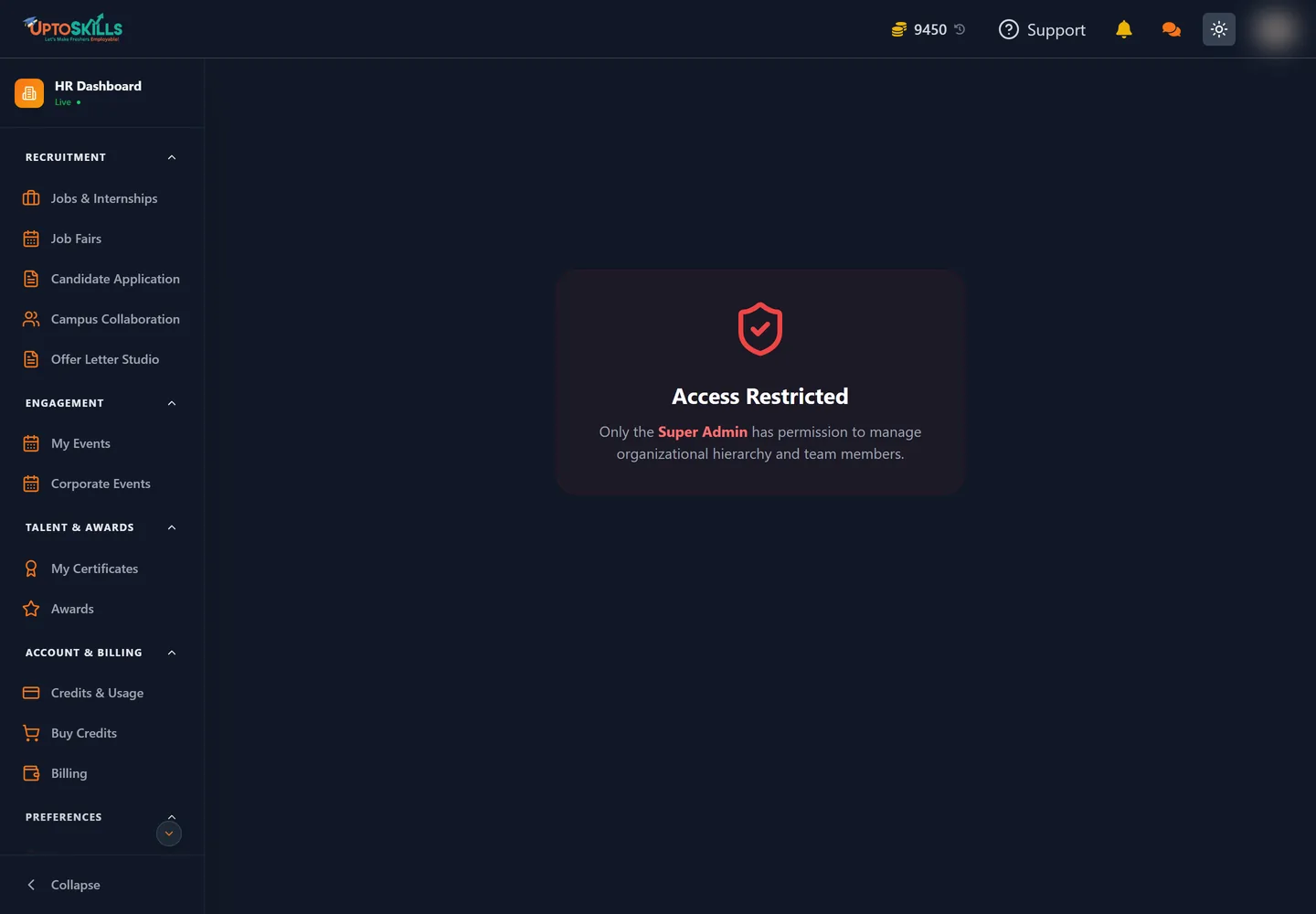
Short answer: Admin Management is where one person — the Super Admin — adds colleagues to the company account, sees who is online, and reads the audit log. Everyone else on the team gets an Access Restricted screen, which is working as intended.
🔒 If this page tells you access is restricted, nothing is broken. Only the Super Admin can open it, and there is exactly one per company account.
Who the Super Admin is
The Super Admin is the account that set the company up. That account owns the organisational hierarchy: it invites people, removes them, and is the only one that can see the audit trail. Every other admin on the account can post jobs, unlock candidates and run hiring, but cannot change who is on the team.
This is a deliberate split. The people doing day-to-day recruiting do not need the ability to add or remove colleagues, and separating the two means a compromised recruiter login cannot quietly add an attacker to your company.
What the Super Admin sees
The page is titled Team Infrastructure and is subtitled Master Control for your company name. Along the top sit two controls:
| Control | What it does |
|---|---|
| View Audit Logs | Opens a drawer with every recorded action across the account |
| Admin Slots | A counter showing how many of your 10 admin seats are used |
| Add Admin | Jumps focus to the invite search box |
Ten slots is the cap, and it counts admins other than the Super Admin. For most companies that is more than enough; if you are approaching it, that is a conversation with support rather than something you can raise yourself.
The three lists
Admin Infrastructure
Everyone currently on the account. The Super Admin is marked as such. Each row offers Audit Logs for that individual — their own login and activity history rather than the whole account's.
Removing someone asks for confirmation first and then reports "Admin removed from organization". Removal takes their access away immediately; it does not delete the jobs they posted or the candidates they unlocked, which stay with the company.
Panelist Infrastructure
Panelists are not admins. They are people attached to a specific interview stage on a specific job — the interviewers themselves. Each panelist card shows:
| Field | Meaning |
|---|---|
| Designation | Their title, defaulting to "Interview Panelist" |
| Room Manager | A badge meaning they can edit the interview room |
| Evaluator | A badge meaning they can score candidates |
| Assigned to Job | Which role they are attached to |
The two permission badges are worth understanding: an Evaluator submits ratings that count towards a decision, while a Room Manager can change the interview setup. A senior engineer sitting in on interviews usually wants Evaluator alone.
Panelists are added from inside a job's interview stage, not from this page. Admin Management shows you the full picture across every job and gives you an edit link back to the stage each one belongs to.
Pending Invites
Invites sent but not yet accepted, each labelled with Invited by so you can see who issued it. An invite can be revoked, which reports "Invitation revoked successfully".
Revoke anything you do not recognise, and revoke invites for people who have changed roles or left before they get around to accepting.
Inviting someone
- Press Add Admin, or click into the search box under Expand Team.
- Type their HR email address.
- Pick them from User Search Results.
- Send the invite. You will see "Invite sent successfully!" and they will appear under Pending Invites.
📧 The person must already have an HR account on UptoSkills. Searching for an address with no account returns "User Not Found".
That catches most people out. The invite adds an existing HR user to your company — it does not create an account for them. If a colleague is not found, have them sign up as an HR user first, then invite the address they registered with.
The audit log
Two views of the same trail. The Activity Monitor on a single member covers that person; View Audit Logs covers the whole account. Both are searchable and filterable:
| Filter | Records |
|---|---|
| LOGIN | Someone signed in |
| LOGOUT | Someone signed out |
| ONLINE | Presence — who is active right now |
| INVITE | An invitation was sent |
| REMOVE | An admin was removed from the organisation |
| ALL | Everything, newest first |
An empty log reads "Quiet for now". That is normal on a young account.
The log is most useful in two situations. The first is an access review: once a quarter, read the admin list and the recent LOGIN entries, and remove anyone who has left. The second is after something unexpected — a job edited, a candidate unlocked that nobody remembers unlocking — where the trail tells you which account did it and when.
A sensible team setup
- One Super Admin, ideally someone who is not doing daily recruiting — an operations or HR lead.
- Admins for the people who actually post jobs and work pipelines.
- Panelists for interviewers, attached only to the roles they are interviewing for.
- Two-factor authentication on every account, especially the Super Admin. See Account Settings and Security.
The principle is ordinary: each person gets the access their job needs and no more. On an account that can reach candidates' personal contact details and spend real money on coins, that is worth the ten minutes it takes to set up.
Where to go next
- Account Settings and Security — two-factor authentication and active sessions
- Inside a Job: The Six Tabs — where panelists are assigned
- The Complete HR Dashboard Guide