

UptoSkills Faculty Dashboard: The Complete Guide (2026)
Every section of the UptoSkills Faculty Dashboard explained in order — College Hub, Academics, placement drives, corporate outreach, credits and billing.
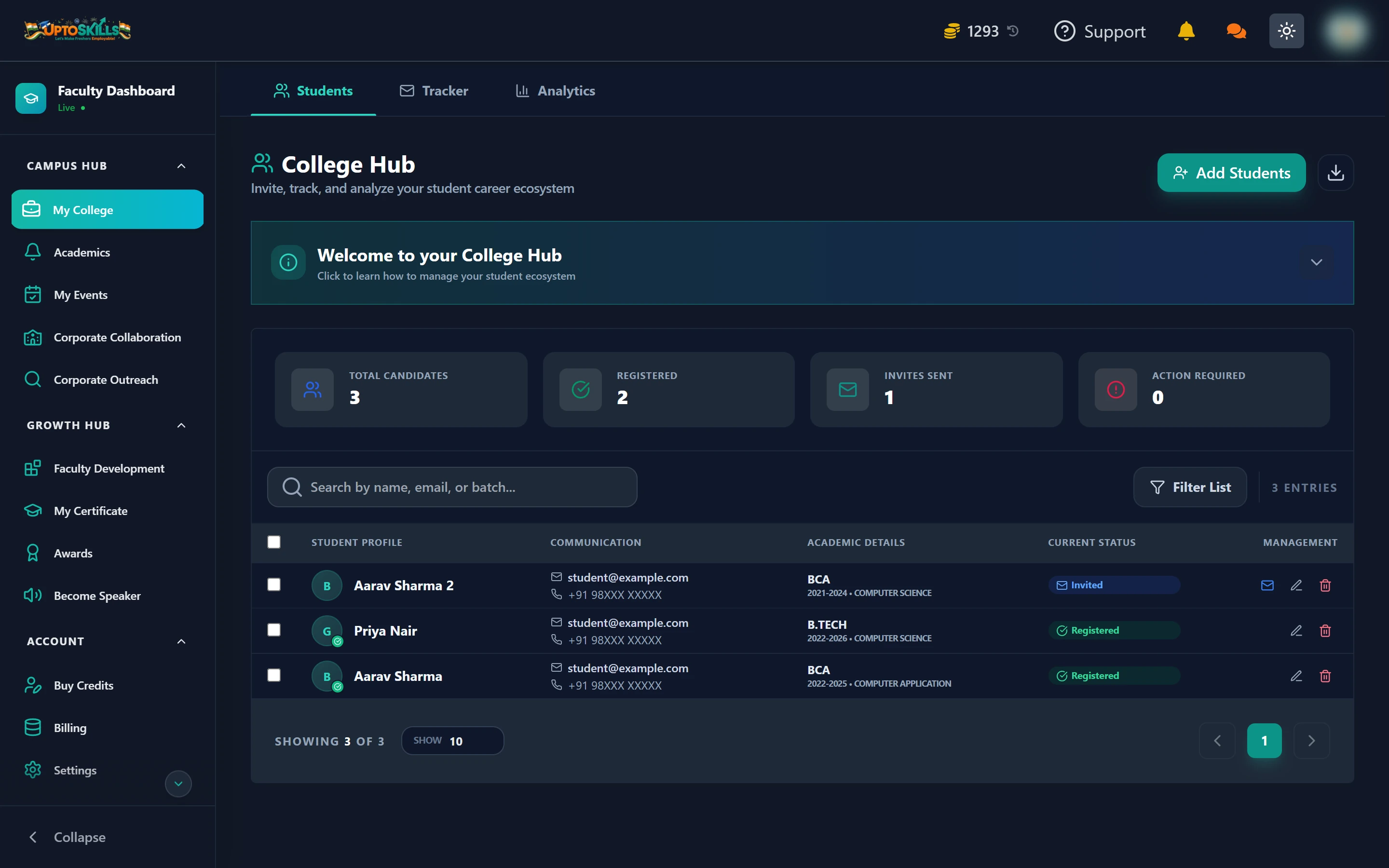
Short answer: The Faculty Dashboard is where a training-and-placement officer or department coordinator runs their students' careers in one place — invite students, post notices, track who applied where, approve company placement drives, and reach out to new recruiters.
🧑🏫 This guide walks the sidebar top to bottom. Each section links to a deeper guide if you want the detail.
How the sidebar is organised
Three groups, and the grouping tells you what each is for:
| Group | What lives there | Who it is for |
|---|---|---|
| Campus Hub | My College, Academics, My Events, Corporate Collaboration, Corporate Outreach | Your day-to-day placement work |
| Growth Hub | Faculty Development, My Certificate, Awards, Become Speaker | Your own professional development |
| Account | Buy Credits, Billing, Settings, Contact Us | Money and account security |
There is also a Job Fair Management item that only appears if an admin has assigned you to manage a job fair. If you have never been assigned one, you will not see it at all.
Campus Hub, section by section
My College
Your student roster. Three tabs across the top:
- Students — the roster itself, with counts for Total Candidates, Registered, Invites Sent and Action Required
- Tracker — every job and internship each student has applied to, and what stage it reached
- Analytics — charts of the same data, filtered by batch
Full detail: adding and inviting students and the tracker and analytics.
Academics
Two tabs — Notices and Academic Calendar. Notices are announcements you push to your students; the calendar holds exams, holidays, placement drives and faculty leave. Students see both in their own dashboard under Academics.
My Events
Create and publish events under your college's name — workshops, seminars, competitions. Events can sit as drafts until you are ready.
Corporate Collaboration
Job and internship opportunities routed to your institution, plus the Campus Requests tab where companies ask to run a placement drive at your college and you approve or reject.
Corporate Outreach
A search tool for finding HR and recruitment contacts at companies you want to invite for a drive. This one costs coins and has a balance requirement — read the Corporate Outreach guide before you start, because the free starting balance is not enough to use it.
Growth Hub, section by section
| Section | What it does |
|---|---|
| Faculty Development | Free FDP webinars you can apply to and attend |
| My Certificate | Certificates you earned from those webinars and events |
| Awards | Award programmes open for registration |
| Become Speaker | Apply to speak at an FDP yourself |
Account
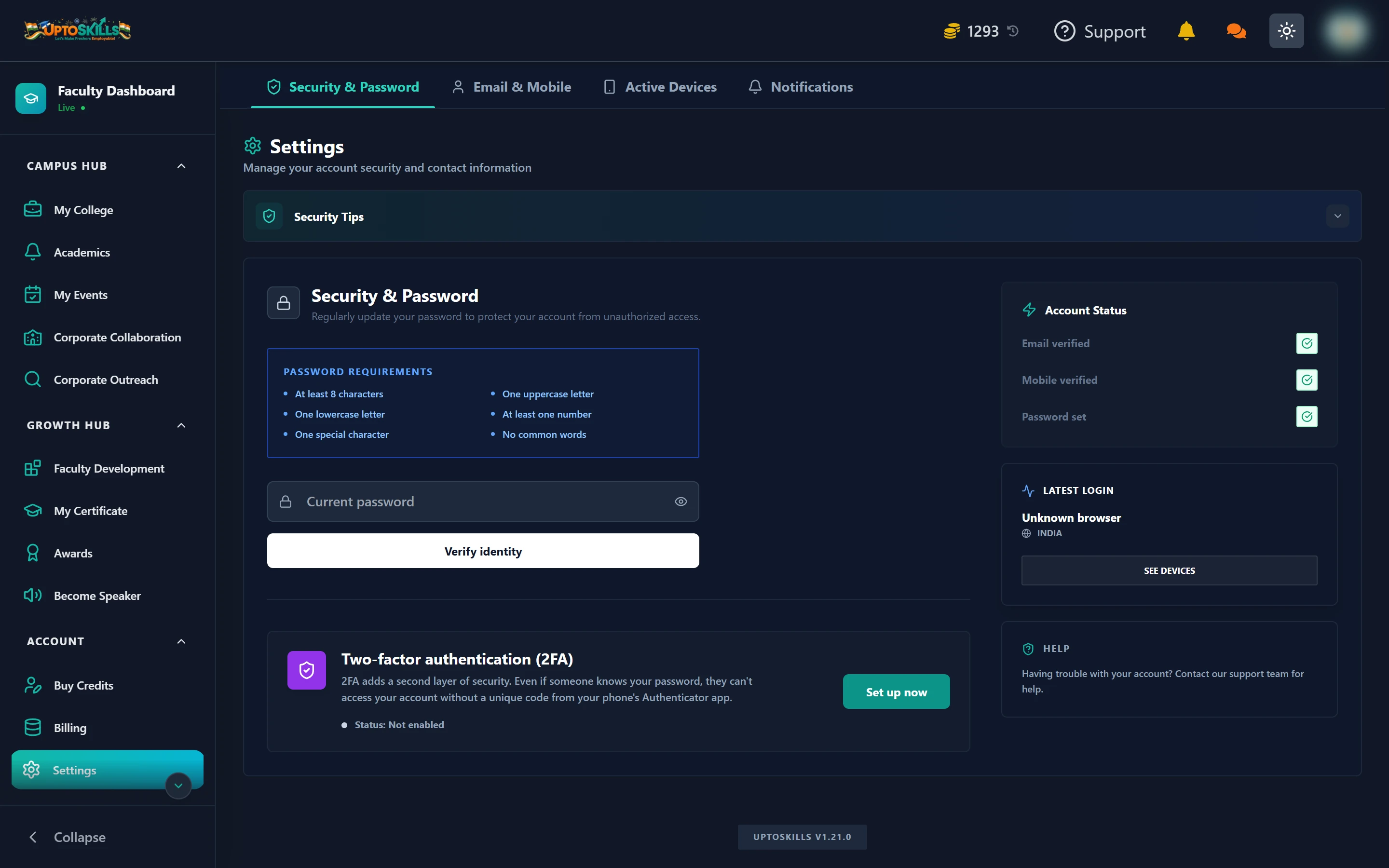
Buy Credits holds the plans, Billing holds your payment history and downloadable invoices, and Settings covers password, 2FA, active devices and notification preferences.
The first five things to do on a new account
- Finish onboarding — click the Faculty Dashboard logo at the top of the sidebar to reopen it any time
- Get verified — the badge under "Faculty Dashboard" shows Live, Pending, Rejected or No Status. Live is what you want
- Add your students — bulk import beats typing them in one at a time
- Post one notice — it is the fastest way to confirm students are actually receiving what you send
- Check Corporate Collaboration — there may already be drives waiting for your approval
Do I need to pay to use the Faculty Dashboard?
No. Adding students, posting notices, the academic calendar, the placement tracker, analytics, FDP webinars and approving campus drives are all free. Two things spend coins: broadcasting a notice by email or WhatsApp, and Corporate Outreach. Every account starts with 1000 free coins.
What is the difference between credits and coins?
They are the same balance. The Buy Credits page calls them credits, the top bar and Billing page call them coins. One coin is worth ₹1 when you buy them.
Can more than one faculty member from my college use it?
Yes. Colleagues register their own faculty accounts against the same college. Students added by any of you appear in the same College Hub.
Where do my students see what I post?
In their student dashboard under Academics, which shows your notices and the academic calendar together.