

For HR's / Corporates
Hiring Flows: Default vs Custom, and When to Use Each
Step 5 of the posting form decides how the whole job behaves. The five-stage default, the eleven step types in the custom builder, saving a flow as a template, and the rule that locks the flow once applications arrive.
Updated 19 Aug 2026
Short answer: Step 5 of the posting form asks you to pick a hiring flow. Take the default — five stages that suit most roles — or open the custom builder and assemble your own from eleven step types. The choice decides which tabs appear inside the job afterwards.
⚠️ Choose carefully. Once a job has applications, the flow type is locked and cannot be switched.
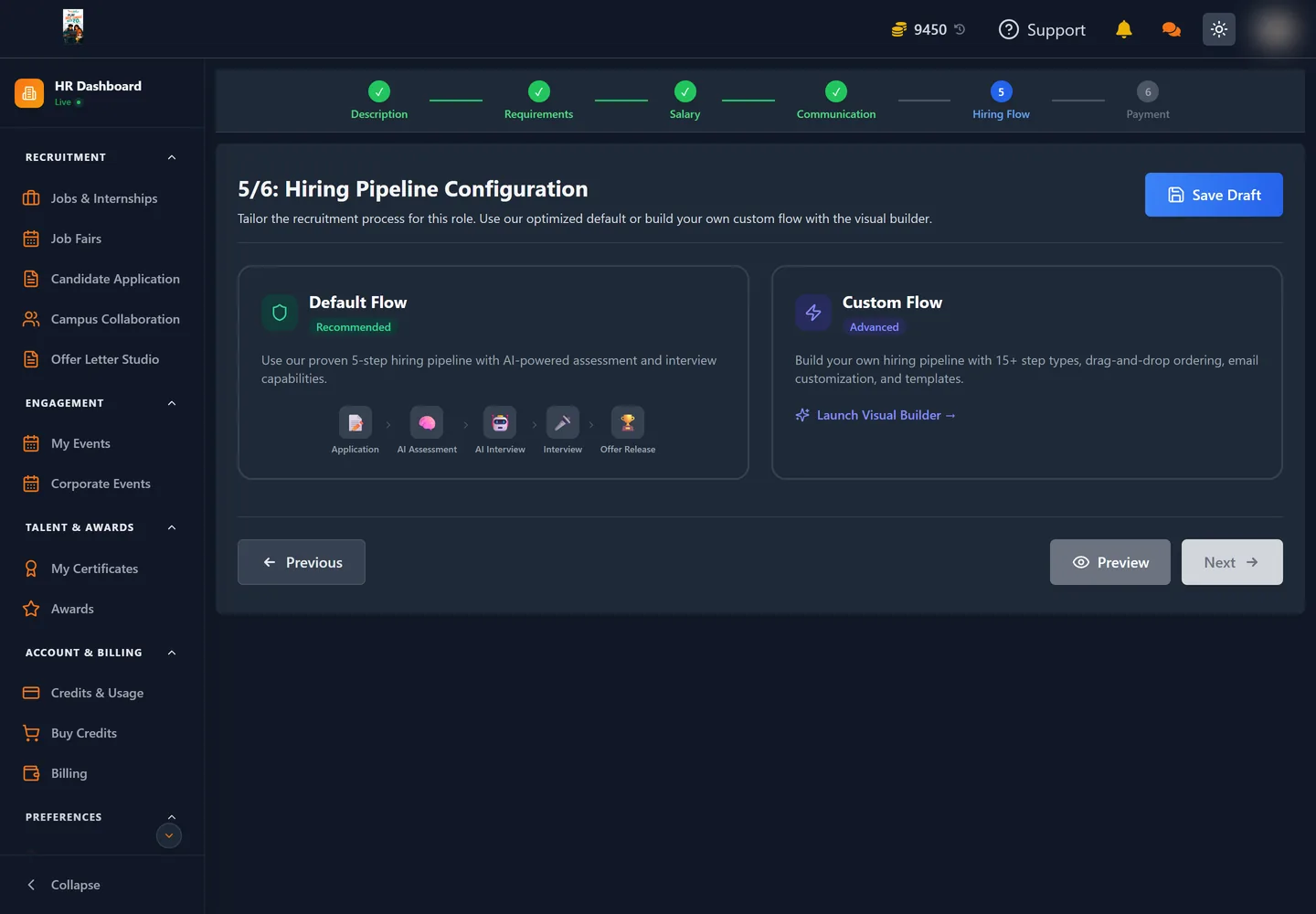
The default flow
Five stages, in this order:
| # | Stage | What happens |
|---|---|---|
| 1 | 📝 Application | Candidates apply and fill your form |
| 2 | 🧠 AI Assessment | Automated, proctored skills test |
| 3 | 🤖 AI Interview | Automated video interview |
| 4 | 🎤 Interview | Human interview round |
| 5 | 🏆 Offer Release | Offer generated and sent |
This is the right answer for most roles. It narrows a large applicant pool automatically before anyone on your side spends time, and it needs no configuration at all.
The custom flow
Choosing Custom Flow and pressing Launch Visual Builder opens the Flow Designer: a stage library on the left, a board in the middle, and a running count of how many stages you have defined.
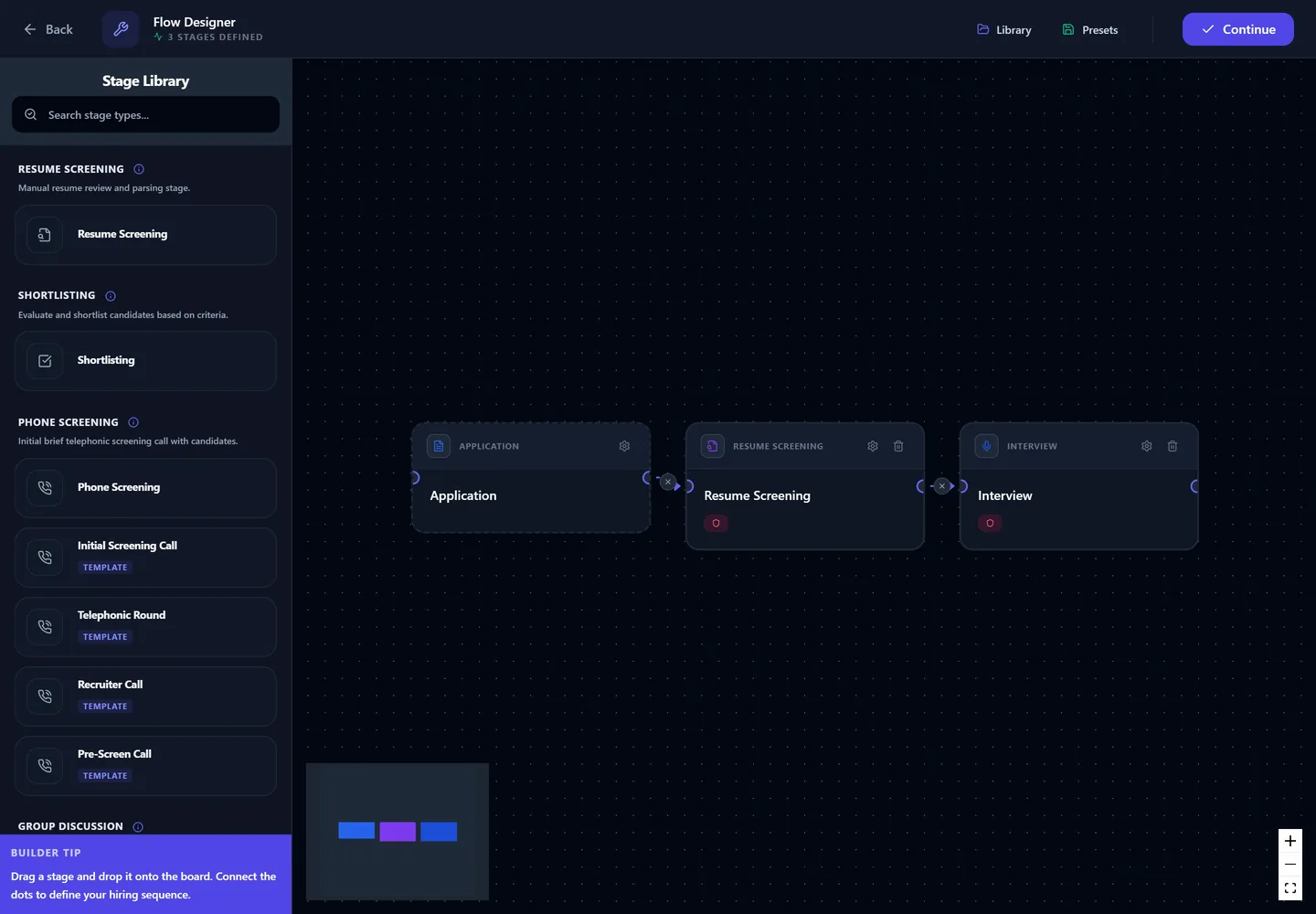
A new board starts with three stages already placed — Application, Resume Screening and Interview — which you can rearrange, delete or build on. Drag a stage from the library onto the board and connect the dots to set the order.
There are eleven step types. The card on step 5 advertises "15+" because the library also lists ready-made variants of some types: Phone Screening, for instance, comes with Initial Screening Call, Telephonic Round, Recruiter Call and Pre-Screen Call presets, all of which are the same underlying step with different defaults.
| Step type | What it is for |
|---|---|
| Application | Where candidates submit their applications and custom forms. Always first, and cannot be removed. |
| Resume Screening | Manual resume review and parsing |
| Shortlisting | Evaluate and shortlist against your criteria |
| Phone Screening | A brief initial telephone call |
| Group Discussion | Assess several candidates together |
| AI Assessment | AI-generated, proctored skills and aptitude tests |
| AI Interview | Automated video interview with a virtual avatar |
| Interview | Interviews on your own tools — Google Meet, Zoom and similar |
| Interview Drive | UptoSkills' own rooms system, with integrations |
| Offer Release | Roll out and track final offer letters |
| Custom Round | A flexible stage for anything the list does not cover |
The Application step is locked to first position — every pipeline has to start somewhere, and that somewhere is people applying.
Configuring a stage
Click the gear on any stage and a configuration panel opens. Three tabs are always present:
| Tab | What it holds |
|---|---|
| General | Rename the stage — "HR Screening", "Technical Round" — and confirm its category |
| AIRUS Automations | Automated emails and notifications triggered when a candidate enters or leaves the stage |
| Advanced | Whether the stage is eliminatory, plus progression and privacy controls |
Most stages add a fourth tab of their own:
| Stage | Extra tab | What you set there |
|---|---|---|
| Application | Application Form Designer | The exact form candidates fill in — custom questions, dropdowns, file uploads, required fields |
| Shortlisting | Shortlisting | Your team's criteria and the maximum points for each |
| Phone Screening | Phone Screen | Call duration, interviewer instructions, rating criteria |
| Group Discussion | GD Scoring | Grading criteria such as Communication, Leadership and Knowledge, with maximum scores |
| AI Assessment | AI Settings | Which test to use, passing score, proctoring level |
| AI Interview | AI Settings | Avatar, difficulty, required skills, auto-skip behaviour |
| Interview | Interview | Duration, meeting-link templates for Zoom, Meet or Teams, rating criteria |
| Interview Drive | Interview Drive | Venue and room details, panelist assignments, mass-invite settings |
The one worth setting deliberately is Advanced → eliminatory. An eliminatory stage ends the process for candidates who do not pass it; a non-eliminatory one is a checkpoint you can still move people through by hand.
Interview vs Interview Drive
These two look similar and are not. Interview assumes you will run the call on your own tooling and simply want the scheduling and the ratings tracked. Interview Drive uses the UptoSkills rooms system, which suits volume days where you are running many candidates through back to back.
Saving a flow as a template
A flow you have built can be saved as a preset and reused on the next role. Presets are listed the next time you open the builder, and can be deleted when they go stale. If you hire the same shapes repeatedly, building the pipeline once and reusing it is the single biggest time saving in the posting form.
The lock, and why it exists
Once a job has even one application, the flow type is locked. The builder tells you plainly: "This job already has 3 applications. Flow type is locked to custom."
The reason is that every applicant sits at a position in the pipeline. Swapping the pipeline underneath them would leave people stranded at stages that no longer exist. There is a second, tighter rule as well: once any candidate has been finalised as hired, new stages cannot be added at all — the builder will refuse and explain why.
The practical consequence: decide your flow before you advertise the role, not after applications start arriving.
Which should you pick?
| Take the default when… | Build a custom flow when… |
|---|---|
| You want to post quickly | You have a stage the default does not cover, such as a group discussion |
| The role is a standard one | You want to skip the AI stages entirely |
| Volume is high and you want automatic filtering first | You need a specific order — screening before assessment, say |
| You are new to the platform | You want automated accept/reject emails at particular stages |
Where to go next
- How to Post a Job or Internship — the surrounding six steps
- Inside a Job: The Six Tabs — what the flow produces