

For HR's / Corporates
Credits & Usage: Where Your Coins Went
How to read the Credits and Usage page — the four headline figures, the spending breakdown by category, the searchable activity log, and how to work out why a balance looks wrong.
Updated 19 Aug 2026
Short answer: Credits & Usage is the full record of every coin you have spent, month by month. If a balance looks wrong, this page will tell you why.
📊 Only real coin movement appears here. Actions priced at zero write no entry at all.
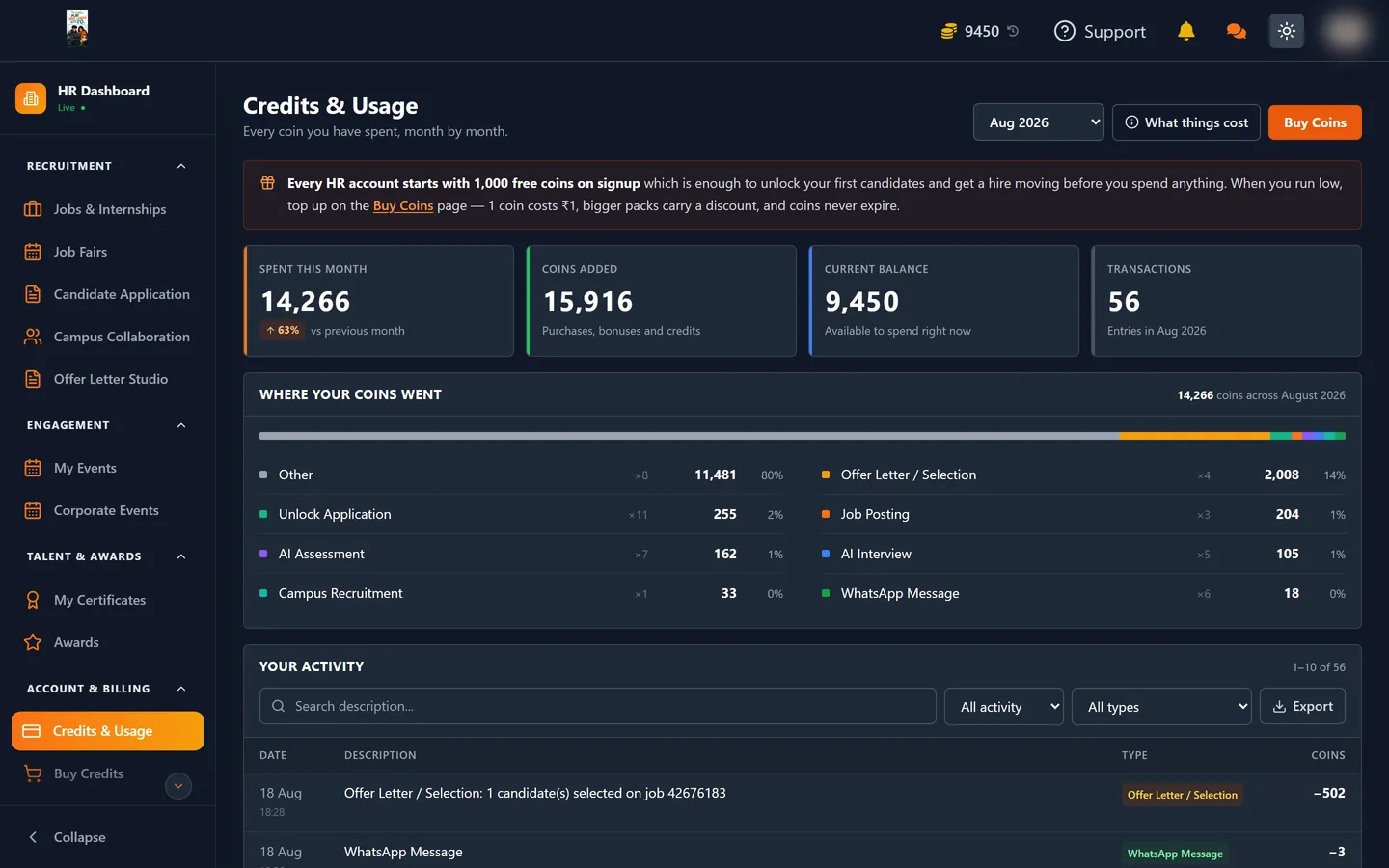
The four headline figures
| Card | What it tells you |
|---|---|
| Spent this month | Total coins out, with a percentage comparison against last month |
| Coins added | Everything in — purchases, bonuses and credits |
| Current balance | Available to spend right now |
| Transactions | Number of entries in the selected month |
The month selector at the top right changes all four. Note that Current balance is always live — it does not change when you look at an older month.
Where your coins went
Below the cards, spending is broken down by category with a stacked bar and a percentage for each. Categories match the price list exactly: Job Posting, Campus Recruitment, Unlock Application, AI Assessment, AI Interview, Offer Letter / Selection and WhatsApp Message, plus Other for anything outside those seven.
Each line shows a count as well as a total. A line reading Unlock Application ×11 · 255 means eleven separate unlock transactions came to 255 coins between them — not eleven candidates at 255 each. One transaction can cover several candidates unlocked in a single click.
The activity log
Your activity is the line-by-line record: date and time, a written description, a colour-coded type badge, and the coin amount as a negative number.
Descriptions are specific enough to trace back to what you did — for example "Offer Letter / Selection: 1 candidate(s) selected on job 42676183" names both the action and the job it belonged to.
Three controls sit above it:
- Search description — free-text, useful for finding every charge tied to one job id
- All activity — filter to money in or money out
- All types — filter to a single category
- Export — download the log
Working out why a balance looks wrong
- Check the month. The selector may be showing an older period than you expect.
- Compare Coins added against Spent. These two plus your opening balance should explain where you are.
- Look at the biggest category first. Offer Letter / Selection at 500 coins each dominates most accounts, so a surprise is usually there.
- Search by job id. If one role feels expensive, searching its id in the activity log gathers every charge it caused.
- Remember free actions are invisible. A missing job posting entry is not a bug — posting is free by default and free actions write nothing.
What things cost
The What things cost button beside the month selector opens the current rate card. Rates can change and discounts run regularly, so this button — not any written guide — is the authority on what you will be charged today.
Where to go next
- What Everything Costs — the default price list explained