

Freshers
How to Download and Read Your AI Interview or Assessment Report (PDF, Print, Any Language)
Where your AI interview and assessment reports live, how to download them as a PDF or print them, and why answering in Hindi or another language does not hurt your score.
Updated 1 Sept 2026
Short answer: Every AI Interview and AI Assessment session ends with a written report you can read on-screen, download as a PDF, or print directly from your browser. Reports are generated in whichever language you answered in, and the AI is instructed to judge only what you said - never the language you said it in.
Where to find your report
Reports stay linked to the session that produced them and are reachable from the AI Practice Hub. You can come back and re-read a report as many times as you like - opening it again doesn't cost a credit.
Downloading and printing
On the report page you'll find two actions:
- Download Report - generates a PDF and saves it to your device. Works in the browser and, if you're using the UptoSkills mobile app, this same button opens the file for you there too, since a straight file download doesn't behave the same way inside an in-app browser view.
- Print / Save as PDF - opens your browser's native print dialog, which most browsers let you save as a PDF from directly, as an alternative to the button above.
Both interview and assessment reports have these two options. The exported file always renders in light mode with a clean white background, even if you're viewing the page itself in dark mode - that's deliberate, so the PDF prints and reads well regardless of how you view it on screen.
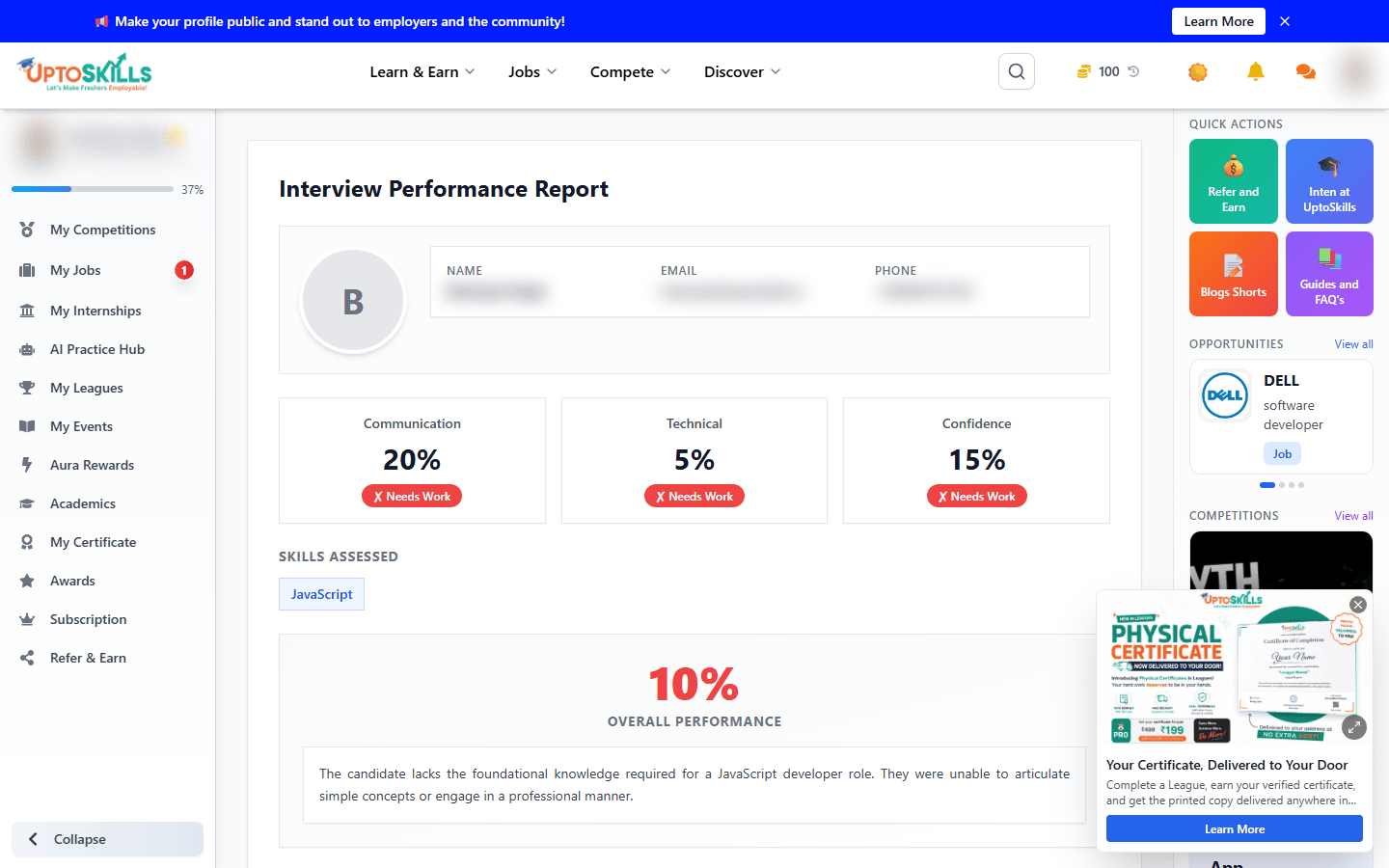
What's inside an interview report
- A written breakdown per question and answer, not just a single score
- The two or three specific habits worth fixing, rather than a wall of generic feedback
- An overall performance summary
What's inside an assessment report
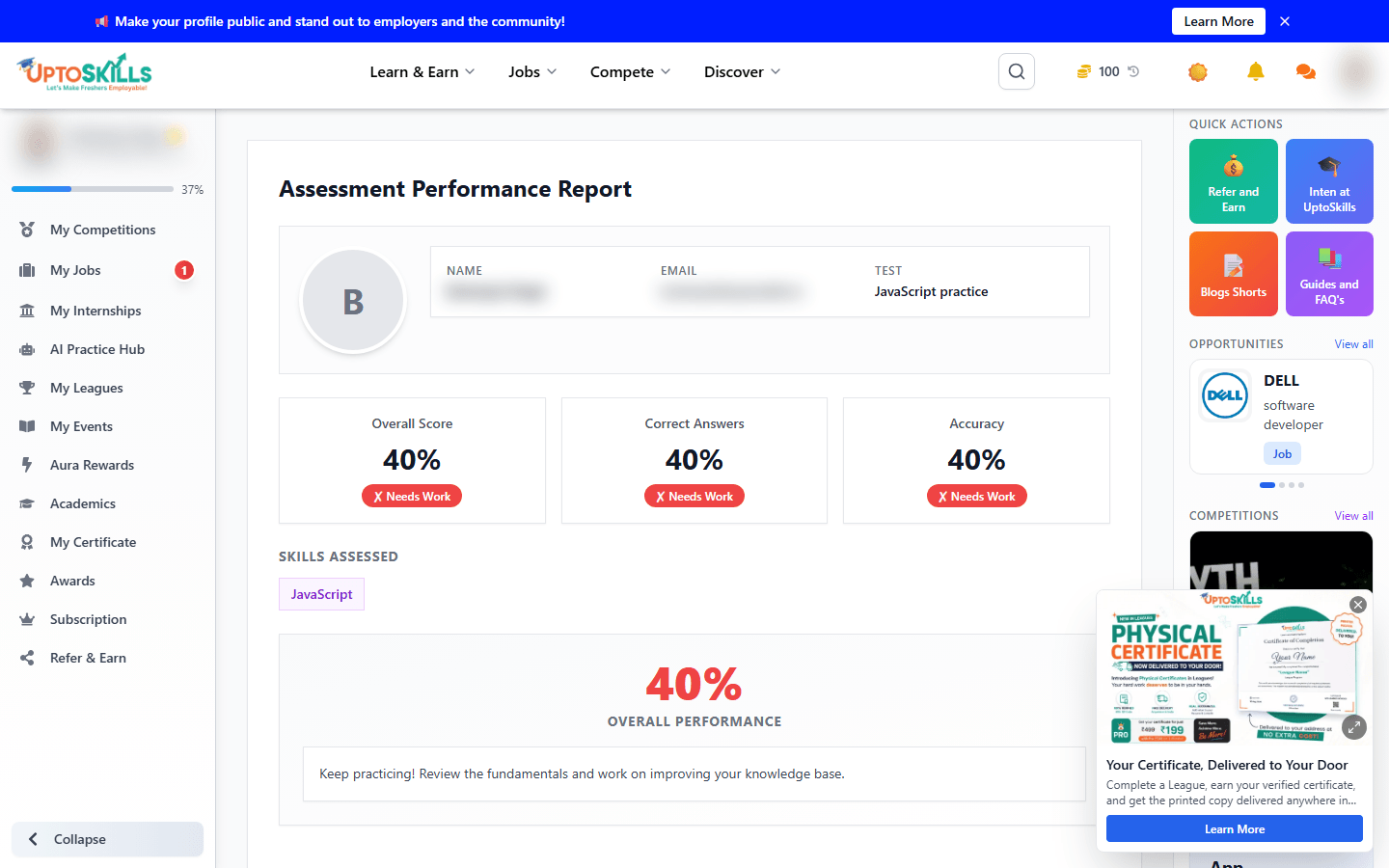
- Your score and a breakdown by topic
- Which specific topics you're weak in
- Recommended Leagues that cover those exact gaps
Reports and language
If you answered a session in Hindi, Hinglish or another supported language, your report is generated in that language too, and the underlying scoring explicitly does not mark you down for the language you used - only for the substance of what you said. You should never see a report comment on "wrong language" or treat a non-English answer as a limitation; if you ever do, that's a bug worth reporting, not something to take as real feedback.
Common questions
Can I download my AI interview or assessment report as a PDF?
Yes - use the Download Report button on the report page, on either report type.
Can I print my report directly?
Yes - use Print / Save as PDF, which opens your browser's normal print dialog.
Does the download work inside the UptoSkills mobile app?
Yes - the same button is used, and it opens the generated file for you inside the app rather than relying on a browser-style file download.
Will I be marked down for answering in Hindi or another language?
No. Scoring is based on the content of your answer, not the language, script or accent you used.
Does re-reading my report cost a credit?
No - a credit is only used when a session starts. Reading the report afterwards is free, any number of times.
Why does my downloaded report look different from the page in dark mode?
The PDF is deliberately generated in light mode for readability and printing, regardless of which mode you were viewing the live page in.
Not sure what proctoring settings to pick before your session? Read AI Interview & Assessment Proctoring Explained first.