Freshers
AI Interview & Assessment Proctoring: Camera, Screen Share, Fullscreen and Browser Rules
What actually gets checked during an AI interview or assessment - camera, screen share, fullscreen and copy-paste rules - and why Brave browser will not let you start one.
Updated 1 Sept 2026
Short answer: Proctoring on UptoSkills AI Interview and AI Assessment is a set of settings you choose before you start - camera, screen share and fullscreen enforcement - plus a few checks that are always on (tab switching, copy-paste, right-click). Break one and you get an on-screen warning with a sound. Break enough of them and the session can end early.
This guide covers every setting so nothing surprises you mid-session.
What you control before you start
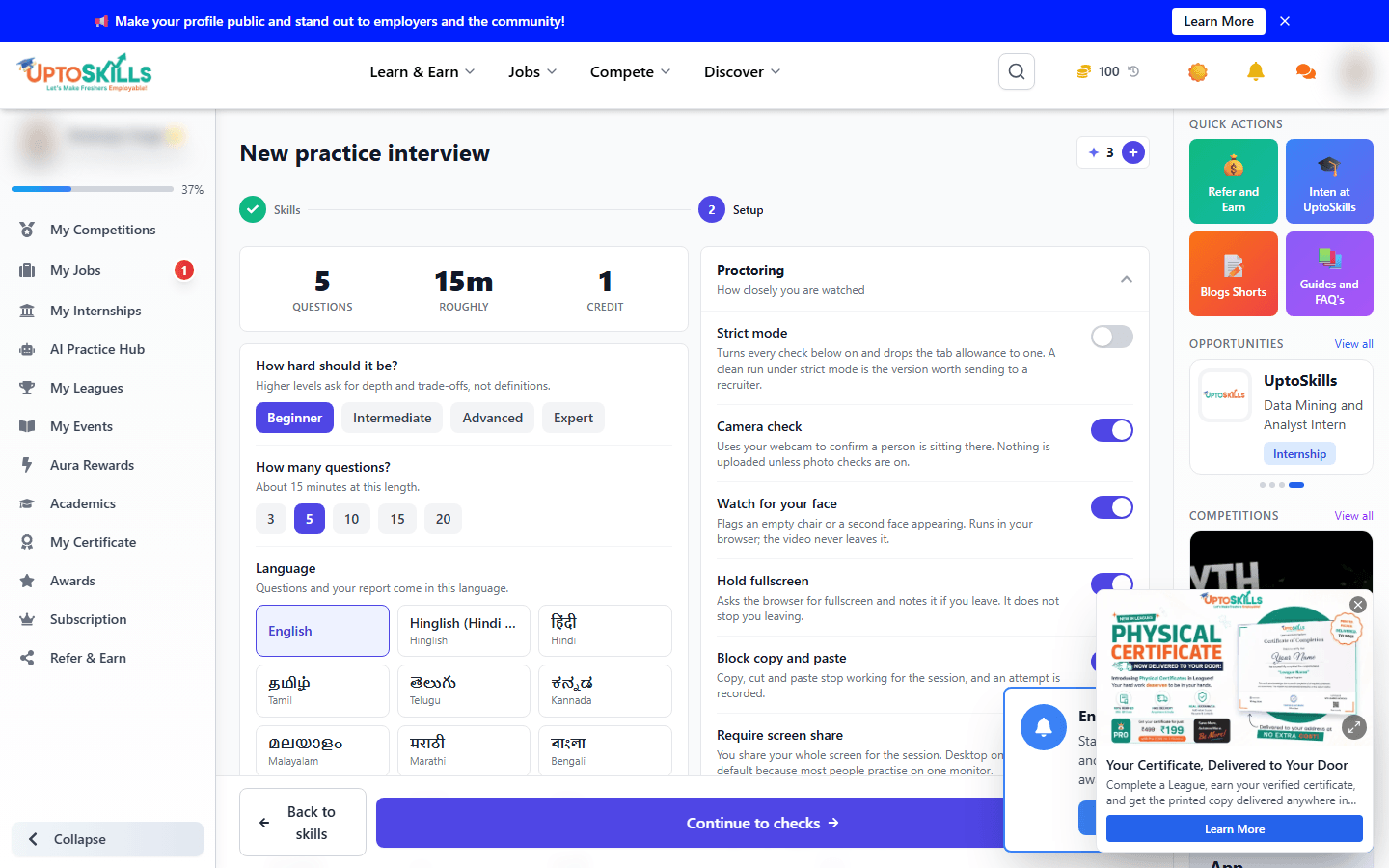
| Setting | What it does |
|---|---|
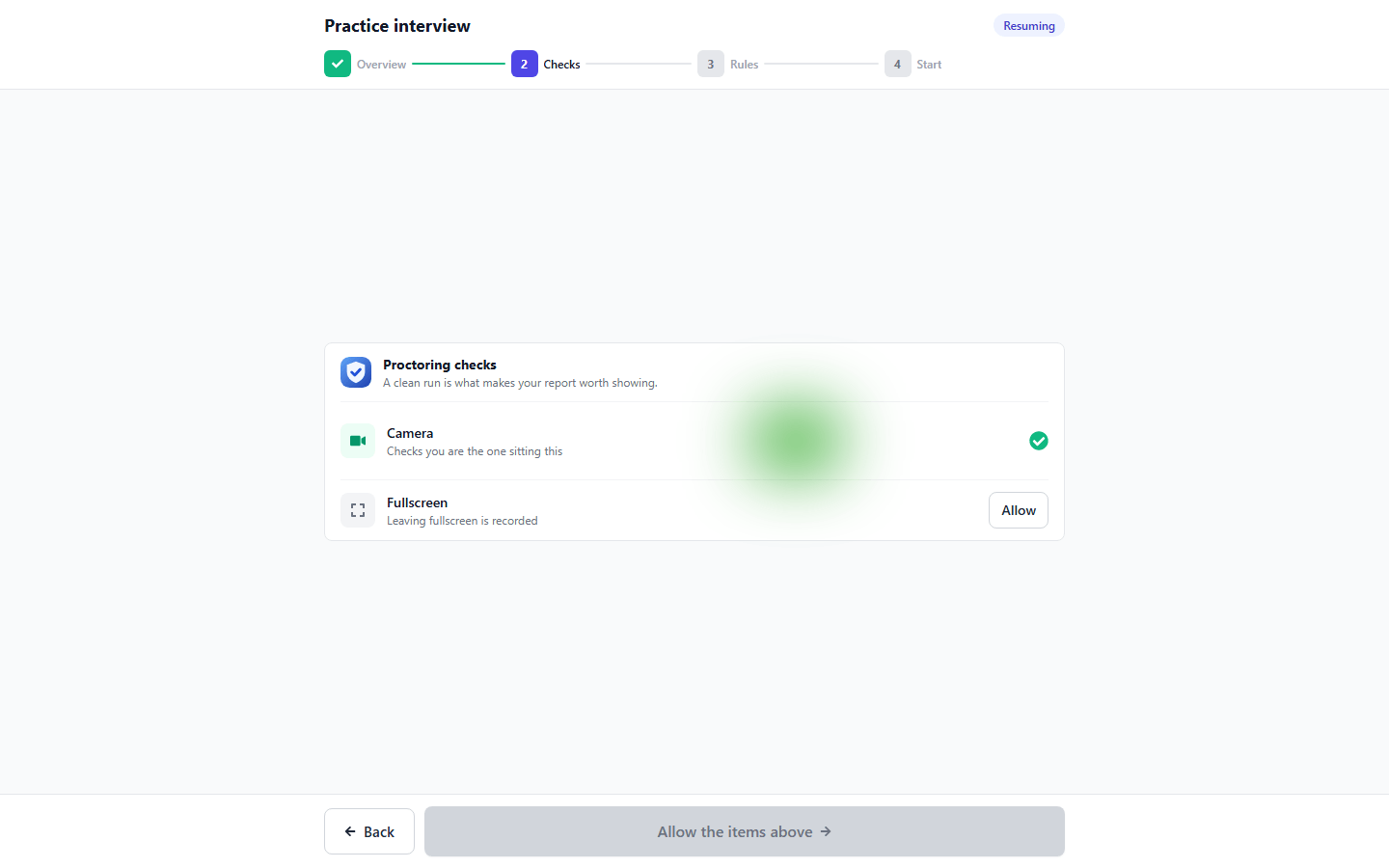
| Camera | Shows your webcam feed next to the AI avatar during an interview (desktop). Face-tracking flags no-face, multiple-faces, looking-away and poor-lighting. |
| Screen share | Requires you to share your screen for the session. Stopping the share mid-session counts as a violation. |
| Fullscreen | Requires the browser tab to stay in fullscreen. Exiting it triggers a warning. |
| Language | The language questions are asked in, and the language your written report comes back in. |
All three proctoring toggles are optional and you set them yourself on the practice setup screen - see the AI Practice Hub guide for where that screen lives.
Camera: desktop vs mobile
If you turn the camera on, desktop shows your live webcam feed in its own panel next to the AI interviewer's avatar, with a small caption if a face issue is detected. On a phone or tablet there's no room for two video panels next to each other, so the camera panel is simply not shown in mobile view - proctoring checks that don't need the panel (screen share, fullscreen, tab-switch, copy-paste) still run normally.
Checks that are always on, regardless of your toggles
- Tab switching / window blur - leaving the interview tab is logged as a violation
- Copy, paste and cut - blocked during the session
- Right-click - disabled to stop context-menu copying
What happens when you break a rule
Every violation - a face dropping out of frame, a fullscreen exit, a tab switch, a stopped screen share, a copy-paste attempt - shows an on-screen warning banner and plays an audible alert tone, so you notice it even if you're not looking directly at the warning. This applies to every violation type, not just camera issues.
🔊 If you don't hear anything when a warning appears, check your device isn't muted - the alert is real audio, not just a silent banner.
Supported browsers
Chrome, Edge and Safari are fully supported. Brave is blocked - its privacy shields interfere with camera access and the proctoring checks in ways that make the session unreliable, so UptoSkills detects Brave specifically and stops you from starting until you switch browsers.
⚠️ Brave disguises its browser identity to look like Chrome by default (that's a deliberate Brave privacy feature), so UptoSkills checks for Brave's own API rather than trusting what the browser reports about itself.
Session length: how many questions
You choose the question count when setting up a session, within limits:
| Minimum | Maximum | |
|---|---|---|
| AI Interview | 3 questions | 20 questions |
| AI Assessment | 3 questions | 50 questions |
Free-trial sessions are fixed at 5 questions on Beginner level - see the free mock interview guide for the full free-vs-Pro breakdown.
Starting from a League
You can also launch AI Interview or AI Assessment practice directly from inside a League page - it takes you to the same setup screen described above, with skills pre-filled from that League's modules, so the settings and proctoring rules on this page apply there too.
Common questions
Do I need a webcam for the AI interview or assessment?
Only if you turn the camera toggle on. Leave it off and the session runs without requesting camera access at all.
What happens if I switch tabs during a session?
It's logged as a violation with an on-screen warning and an alert sound. Repeated violations can end the session early.
Why can't I start an AI interview in Brave?
Brave's built-in privacy shields block camera and tracking behaviour the proctoring system depends on, so UptoSkills blocks Brave specifically and asks you to use Chrome, Edge or Safari instead.
Is there a sound when a rule is broken?
Yes - every violation type plays an audible alert, not just camera-related ones, so you don't need to be staring at the screen to notice.
Does the camera show up on mobile?
No. The camera panel is hidden on mobile screens; other proctoring checks still apply if you've enabled them.
Can I copy and paste my answers?
No - copy, paste, cut and right-click are all blocked during a session, camera on or off.
Ready to try it? Start an AI interview · Start an AI assessment · read how the report and scoring work.