

How to Send College Notices to Students on UptoSkills
Post a notice once and push it to your students by in-app notification, email or WhatsApp — with the priority levels and coin costs explained.
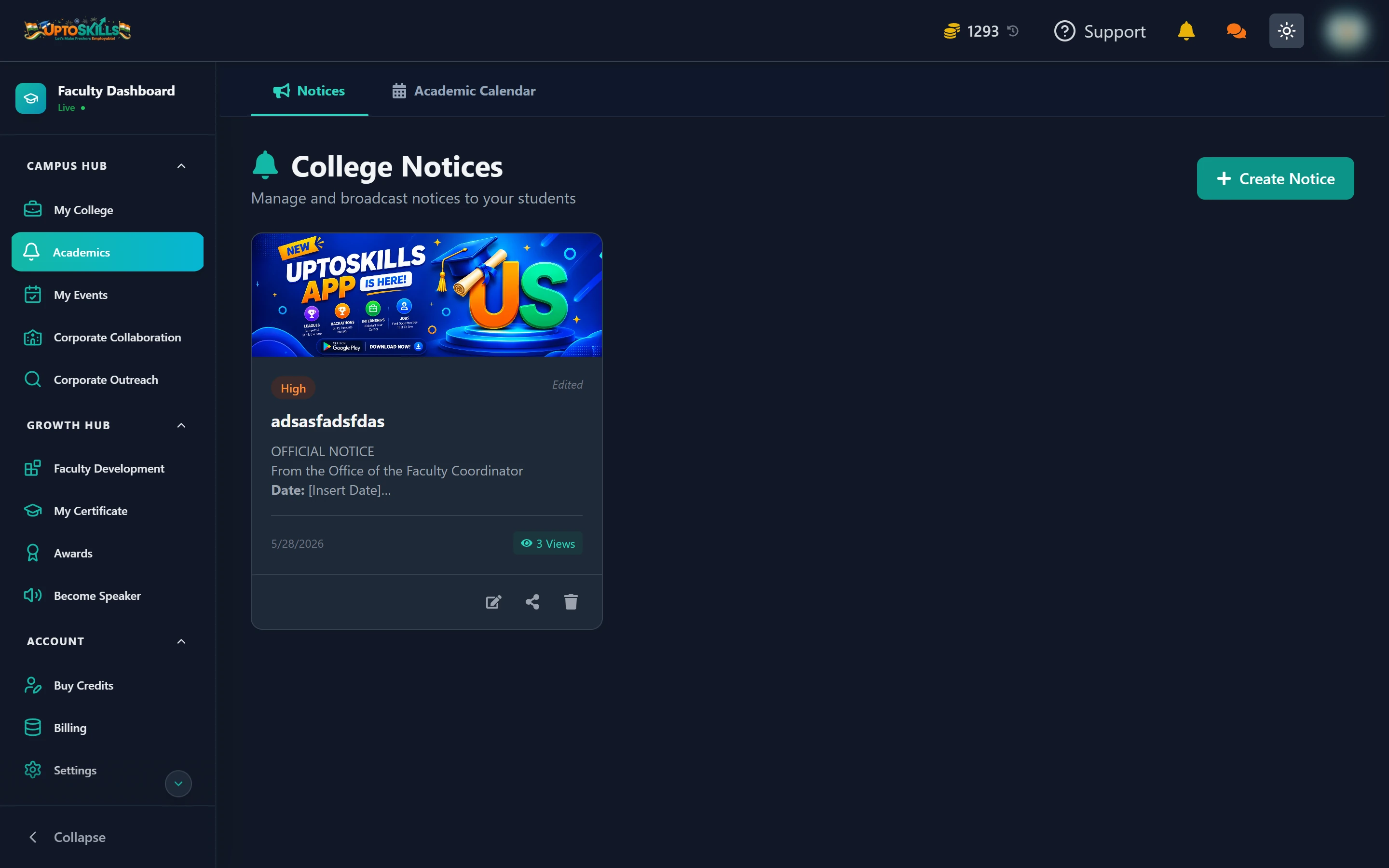
Short answer: Academics → Notices → Create Notice. Write it, set a priority, optionally attach a banner, and post. Then use Broadcast to push it out by notification, email or WhatsApp. Notifications are free; email and WhatsApp cost a few coins.
Creating a notice
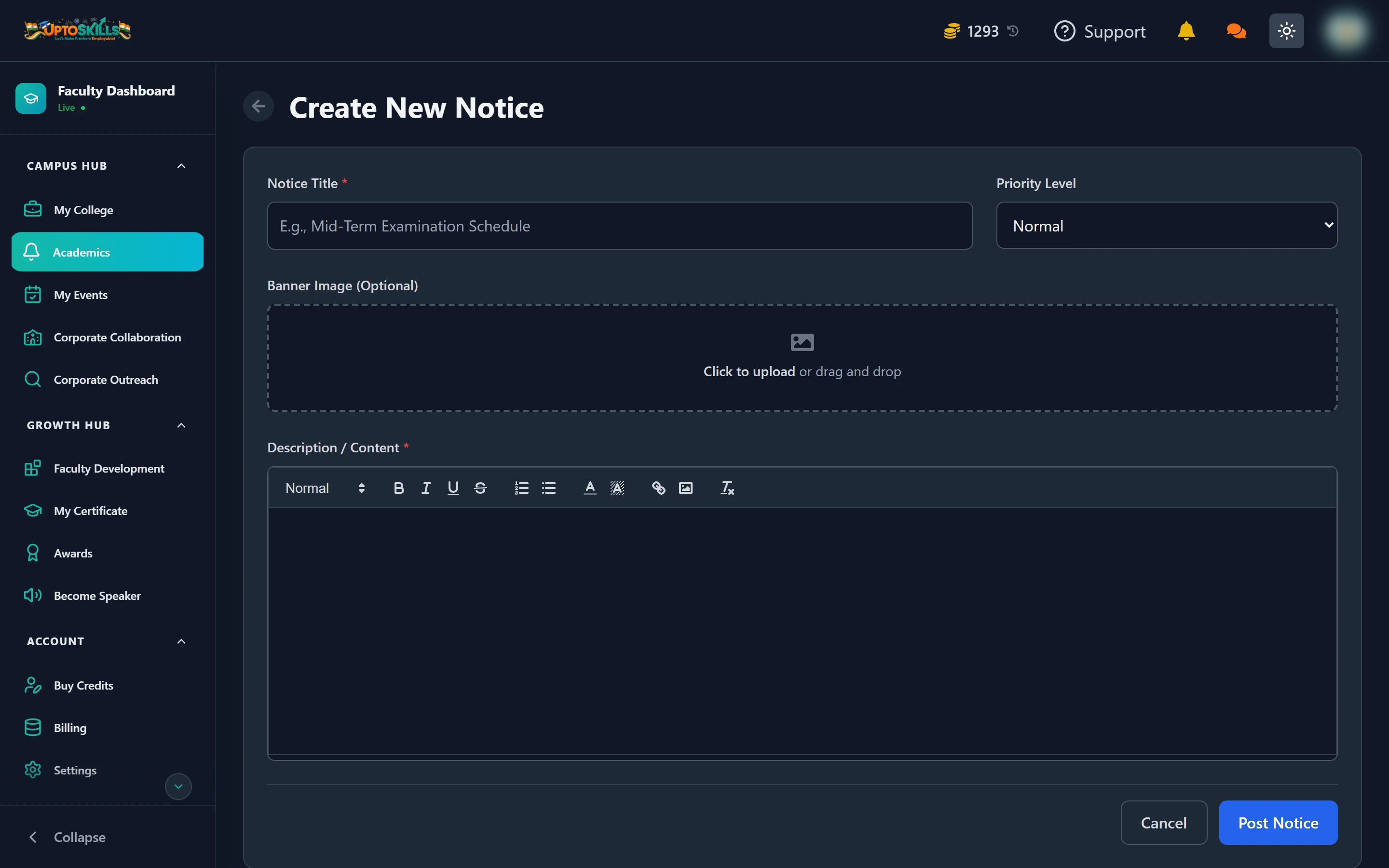
- Notice Title — the line students see first, so make it specific ("Mid-Term Exam Schedule — CSE 3rd Year", not "Important Notice")
- Priority Level — Low, Normal, High, or Urgent / Critical
- Banner Image — optional, drag and drop
- Description / Content — the body, with formatting
- Post Notice
What does the priority level actually change?
It sets how prominently the notice is flagged to students — an Urgent notice stands out in their list where a Low one sits quietly. It does not change who receives it. Keep Urgent for things that are genuinely time-critical, or students stop reacting to it.
Broadcasting a notice
Posting puts the notice on the board. Broadcasting actively pushes it. Pick your students, then pick your channels:
| Channel | Cost | Best for |
|---|---|---|
| System Notification | Free | Everything — always leave this on |
| First 2 students free, then about 1 coin per 5 students | Anything students need a written record of | |
| 1 coin per student | Genuinely urgent, same-day messages |
💰 A 100-student email broadcast costs about 20 coins. The same broadcast on WhatsApp costs 100. With 1000 free coins to start, you have a lot of room — but WhatsApp is roughly five times the price, so save it for what deserves it.
Why do only some students get the WhatsApp message?
WhatsApp only goes to students who have verified their mobile number. Unverified students still get the notification and email. You are only charged for the students who can actually receive it.
Tracking who read it
Each notice in the list carries a views count. Open it to see which students opened the notice — useful when you need to prove a circular was actually circulated.
Editing and reposting
Notices can be edited after posting, and edited ones are marked Edited in the list so nobody is misled about what the original said. Broadcasting again re-charges for whichever paid channels you select, so fix typos before you broadcast rather than after.
Do students need the app to receive notices?
No. Notices appear in their student dashboard under Academics on the website. The app adds push notifications on top of that.
Can I schedule a notice for later?
Notices post when you post them. For dated items — exams, holidays, drives — use the Academic Calendar instead, which is built around dates.
Can I send a notice to just one class?
Yes. The broadcast screen lets you select exactly which students receive it, so you can limit it to one batch or course.
What happens if I run out of coins mid-broadcast?
The broadcast is rejected before anything is sent, with a message telling you how many coins you needed. Nothing goes out half-finished and you are not charged.