
Managing Profile — How to Edit Email, Mobile, Verification & Security Settings
You can manage everything in your UptoSkills profile by opening Settings from your profile icon. From there, you can verify or change your email and mobile number, update your password, enable notifications, and turn on 2FA for extra security. This keeps your account safe, updated, and easy to access.
Managing Profile — How to Edit Email, Mobile, Verification & Security Settings
This guide helps users manage their account settings, including email verification, mobile verification, password management, notifications, and 2FA security on the UptoSkills platform.
Step 1 — Open the Homepage
1. Open your web browser.
2. Visit the UptoSkills homepage.
3. Log in using your registered credentials.
Step 2 — Access Account Settings
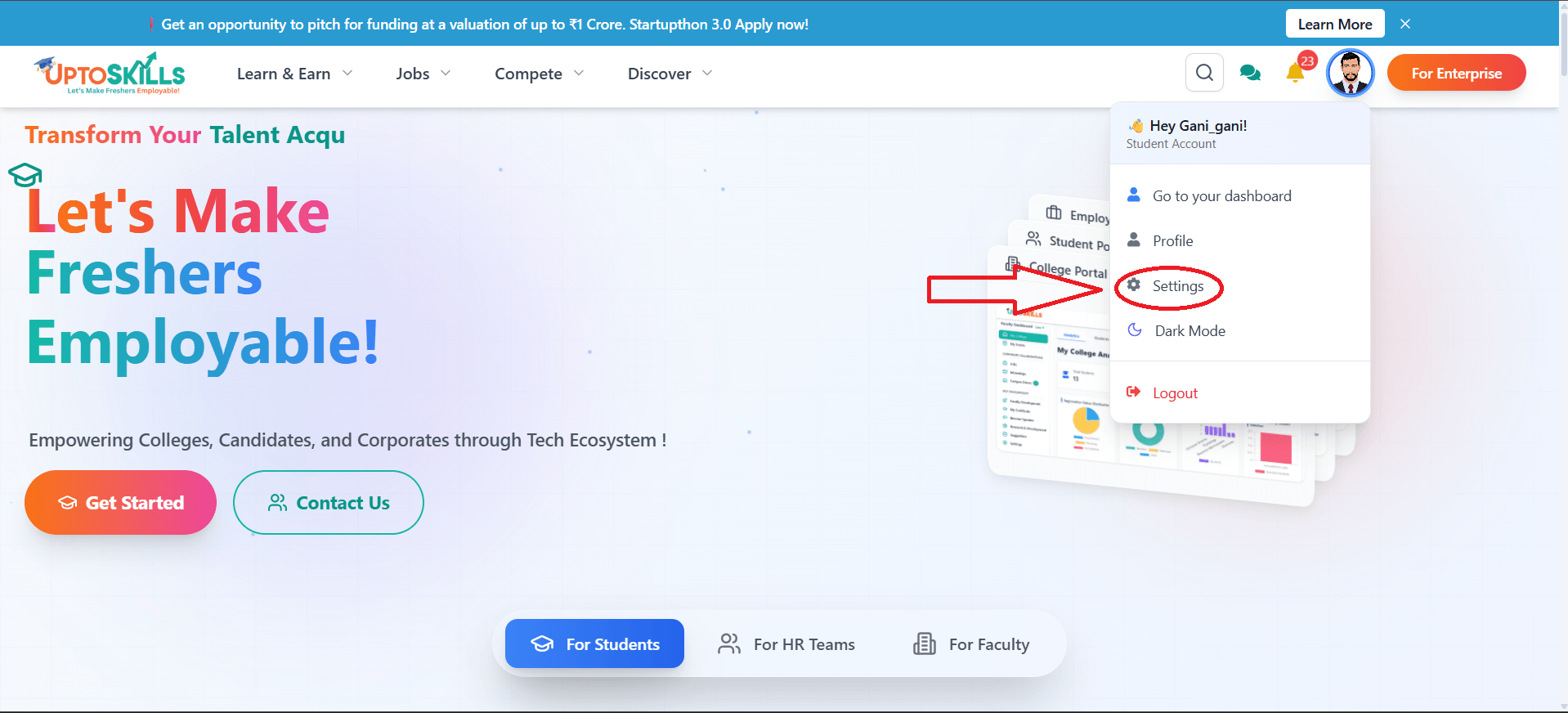
1. Locate your profile avatar icon in the top-right corner of the header.
2. Click on the profile icon.
3. From the dropdown menu, click Settings.
Step 3 — Account Settings Overview
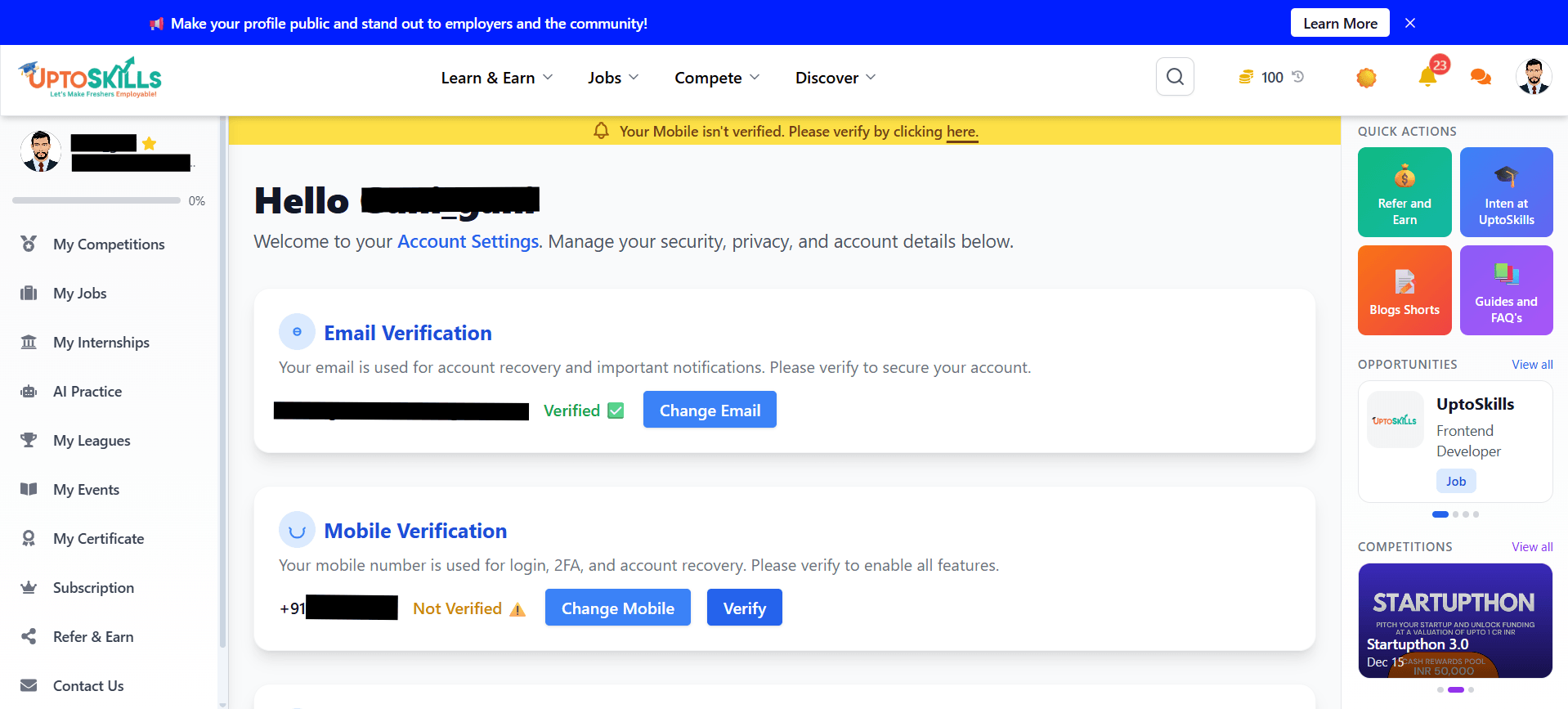
After clicking Settings, you will be redirected to the Account Settings page.
Here, you can manage:
1. Email verification
2. Mobile number verification
3. Password & security settings
4. Notification preferences
5. Two-Factor Authentication (2FA)
Step 4 — Email Verification Status
1. Scroll to the Email Verification section.
2. Your registered email ID is displayed.
3. If verified, a “Verified ✅” label appears beside your email.
4. If not verified, follow the on-screen steps to complete verification
📌 Email is used for:
l Account recovery
l Important notifications
l Security alerts
Step 5 — Mobile Number Verification
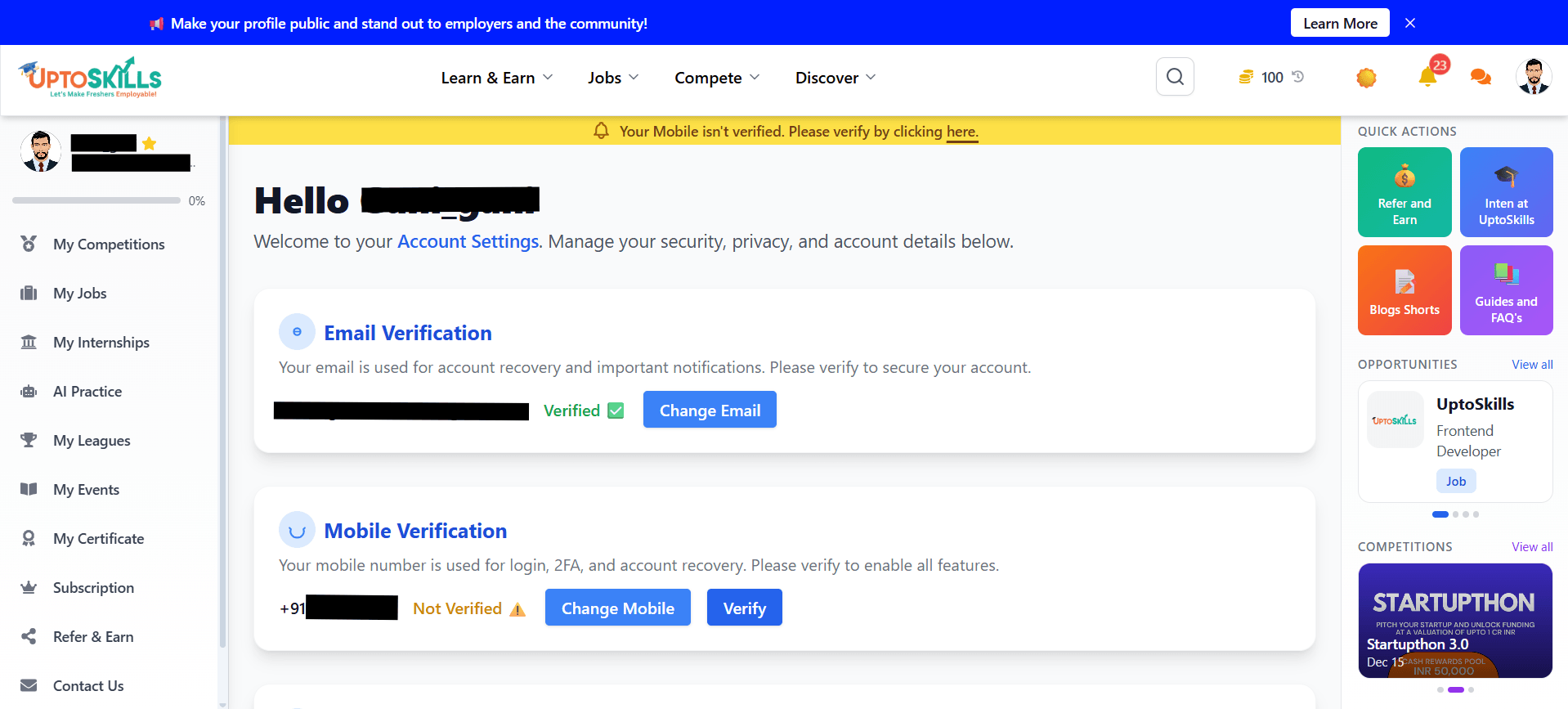
1. Navigate to the Mobile Verification section.
2. Your registered mobile number will be visible.
3. If not verified:
1. Click Verify
2. Enter the OTP sent to your mobile
4. To update the number:
1. Click Change Mobile
2. Enter a new mobile number
3. Verify using OTP
📌 Mobile verification enables:
l Secure login
l Two-factor authentication
l Faster account recovery
Step 6 — Change Password
1. Scroll down to the Change Password section.
2. Follow the instructions displayed:
l If password is already set, update it directly.
l If not set yet:
1. Logout from your account
2. Click Forgot Password on the login page
3. Reset password using the email link
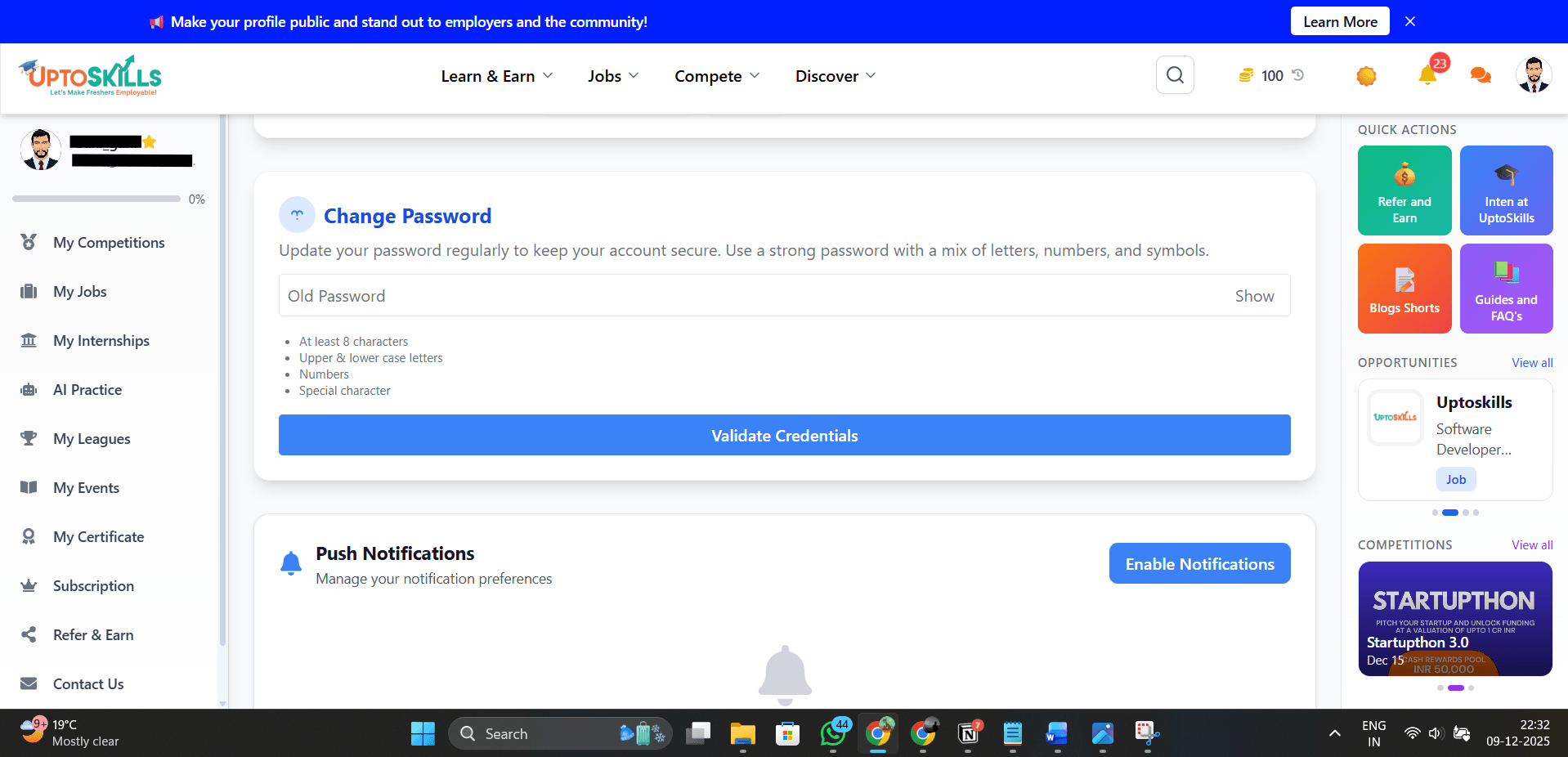
Step 7 — Manage Push Notifications
1. Go to the Push Notifications section.
2. Click Enable Notifications to receive:
l Job alerts
l Hackathon updates
l Platform announcements
Step 8 — Enable Two-Factor Authentication (2FA)
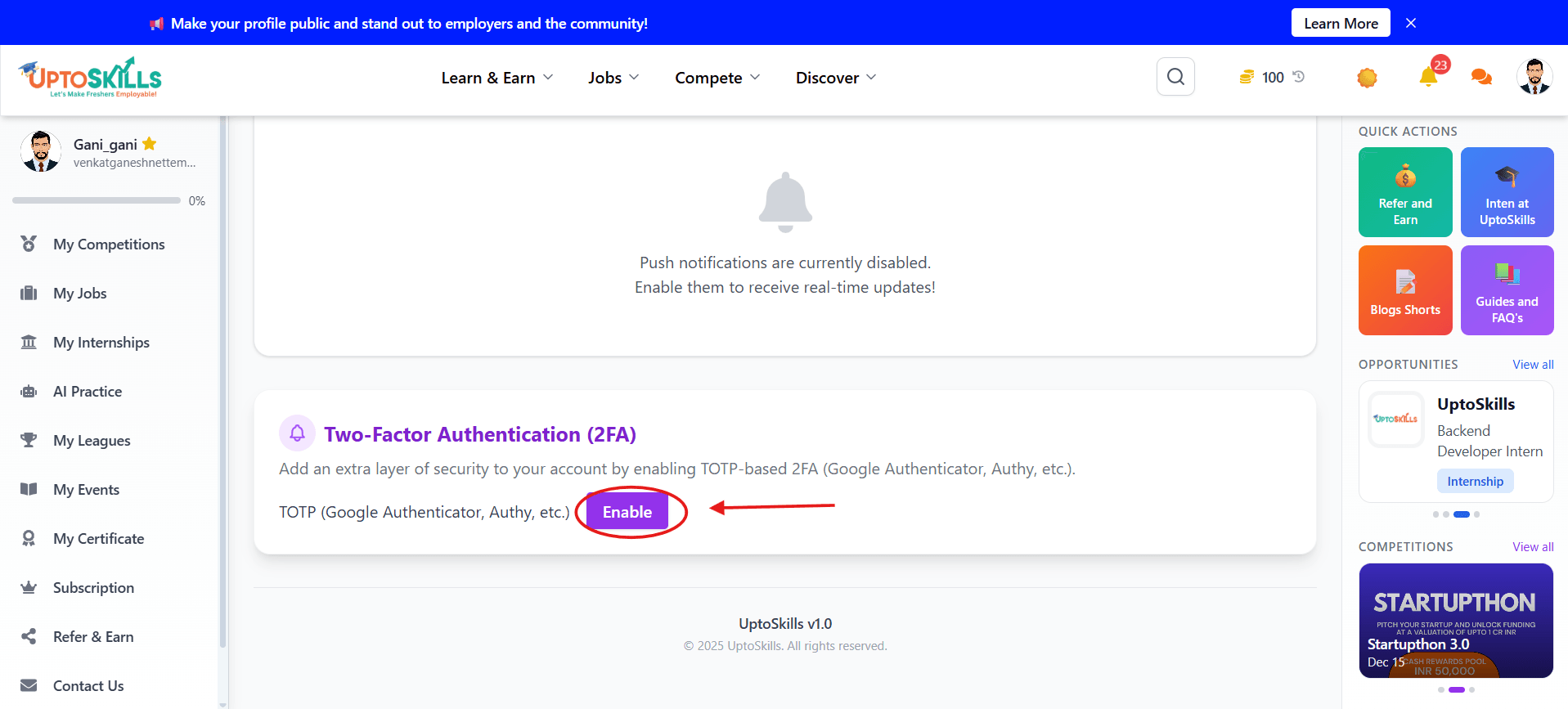
1. Scroll to the Two-Factor Authentication (2FA) section.
2. Click Enable.
3. Use an authenticator app such as:
l Google Authenticator
l Authy
4. Complete the setup by entering the generated OTP.
📌 2FA adds an extra security layer to your account.